

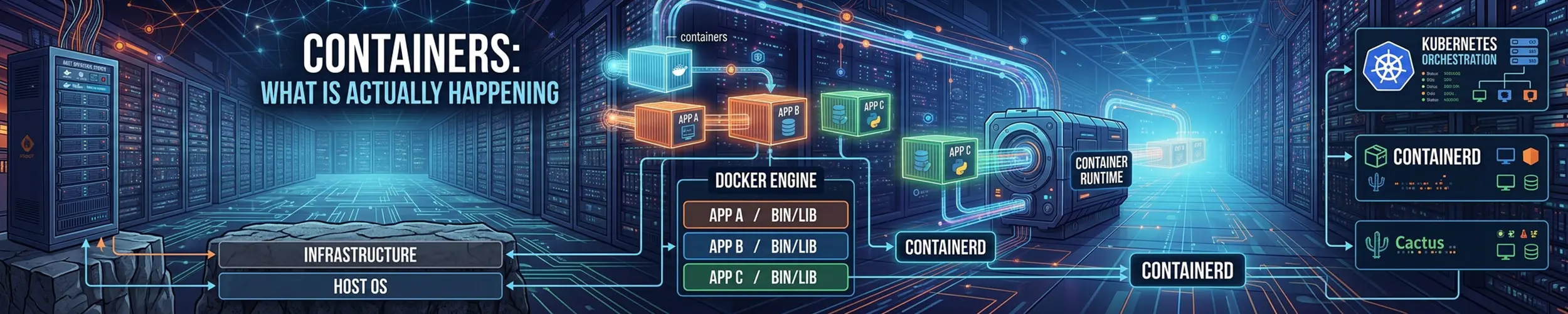
A container is not a small virtual machine. There is no second kernel, no emulated hardware, nothing being booted. It is an ordinary process on your machine, started by your kernel, appearing in your process table — given a restricted view of the system and a ceiling on what it may consume.
Three kernel features do all the work, and each answers a different question.
| Feature | Answers |
|---|---|
| Namespaces | What can this process see? |
| cgroups | How much can it use? |
| Overlay filesystem | What does its disk look like? |
Docker, Podman and Kubernetes are conveniences layered on top of those three. Everything below applies whichever one you use — for the practical side, see Docker Basics.
Namespaces: a restricted view
A namespace wraps one global resource so that processes inside it see their own copy. There are several, and a container typically gets one of each.
| Namespace | What it isolates |
|---|---|
mount | The filesystem tree. This is why the container has its own /. |
pid | Process IDs. The first process inside becomes PID 1. |
net | Interfaces, addresses, routes, firewall rules and ports. |
uts | Hostname and domain name. |
ipc | Shared memory segments and message queues. |
user | UID and GID mapping — root inside can be an unprivileged UID outside. |
cgroup | Which part of the cgroup tree is visible. |
You can create them yourself, without any container runtime at all. This is a container, in one line:
sudo unshare --pid --fork --mount-proc --uts --net bash
# then, inside:
hostname isolated     # does not change the host's name
ps aux                # only this shell and ps
ip addr # just a loopback interfaceThat is the entire trick. Add a root filesystem to pivot into and a cgroup to cap it, and you have reinvented Docker’s core.
The diagnostic: look from the host
Because a container is just a process, every tool you already know works on it — from outside. This is far more powerful than docker exec, because it does not depend on the image containing any tools at all. A distroless image with no shell is still fully inspectable from the host.
ps -ef | grep nginx               # container processes, in the host's table
sudo lsns                         # every namespace and what is in it
ls -l /proc/<pid>/ns/             # the namespaces one process belongs to
sudo nsenter -t <pid> -n ss -tlnp # its listening sockets, using the host's ss
sudo nsenter -t <pid> -m ls /app  # its filesystem, using the host's ls
sudo cat /proc/<pid>/cgroup       # which cgroup limits apply
sudo lsof -p <pid> # every file it has openIf two processes show the same inode number for a namespace in /proc/<pid>/ns/, they are sharing it. That single check answers most “why can these two containers see each other” questions.
cgroups: the ceiling
Control groups limit and account for CPU, memory, I/O and process counts. On any current distribution this is cgroups v2, a single tree under /sys/fs/cgroup, managed by systemd — which is why containers and services appear side by side in the same hierarchy.
systemd-cgtop                                   # live usage by cgroup
systemd-cgls                                    # the tree
cat /sys/fs/cgroup/<path>/memory.max            # the limit
cat /sys/fs/cgroup/<path>/memory.current        # what it is using
cat /sys/fs/cgroup/<path>/memory.events # how many times it hit the wallExit code 137 means the kernel killed it for exceeding its memory limit. A container that dies with 137 and no application error was OOM-killed at the cgroup level — which is why the host still shows plenty of free memory and the host’s dmesg looks calm. Raise the limit or fix the leak; nothing about the host was ever short of RAM. (137 is 128 + 9, signal 9.)
The same boundary explains a subtler problem: many runtimes read /proc/meminfo and nproc, which are not namespaced and report the whole host. A JVM or Node process inside a 512 MB container may size its heap or thread pool for the machine’s 64 GB and 32 cores. Modern runtimes are cgroup-aware, older ones are not, and that mismatch is behind a great many “it works locally” failures.
Images, layers and why data vanishes
An image is a stack of read-only layers, one per build step. At runtime the kernel’s overlay filesystem presents them as a single tree with one thin writable layer on top. Reads fall through to whichever layer holds the file; writes go to the top layer only.
Three consequences follow directly:
- Anything not on a volume disappears when the container is replaced. The writable layer belongs to that container, not the image.
- Modifying a large existing file is slow the first time. Overlay copies the whole file up to the writable layer before changing a byte — copy-on-write at file granularity. Databases on the container filesystem instead of a volume suffer badly for this reason.
- Deleting a file does not shrink the image. A
RUN rmin a later step adds a whiteout marker; the data is still in the earlier layer. Deleting in the sameRUNthat created it is the fix.
mount | grep overlay      # the lowerdir/upperdir stack, on the host
du -sh /var/lib/docker # where all the disk actually wentThe misreading: containers are not a security boundary
They isolate, but they share one kernel. A kernel vulnerability reached through a system call is reachable from inside a container in a way it is not from inside a VM. That is the fundamental difference, and no amount of configuration removes it.
Three configurations make it much worse, and all three are common:
- Running as root without user namespaces. UID 0 inside is UID 0 outside; only capabilities and seccomp stand in the way. A bind-mounted host directory is then writable as root.
--privilegedremoves essentially all of it — full capabilities, host devices, no seccomp filter. Treat it as “this process is root on the machine”.- Mounting the container runtime’s socket. Anything that can talk to
/var/run/docker.sockcan start a privileged container, which is a complete host takeover in one step. It appears in CI setups constantly.
The practical defaults: run as a non-root UID, drop capabilities you do not need, mount the root filesystem read-only where you can, and prefer rootless Podman or rootless Docker for anything untrusted. Where the workload is genuinely hostile, use a VM.
Symptoms that stop being mysterious
| What you see | What it actually is |
|---|---|
| Exit code 137, no error logged | cgroup memory limit; the kernel killed it |
| Exit code 139 | Segfault — signal 11, an application crash |
ping fails but the network works | Missing NET_RAW capability, not a network fault |
| Bind-mounted files owned by a strange number | The UID inside does not exist on the host; there is no translation |
| Container reports the host’s full RAM and CPU count | /proc/meminfo is not namespaced |
| Ports open despite the host firewall | The runtime writes its own netfilter rules — see Linux Firewalls |
| Everything lost on restart | The writable overlay layer went with the old container |
| PID 1 ignores Ctrl+C and takes 10 seconds to stop | PID 1 has no default signal handlers; the shell form of CMD never forwards them |
If you want the full picture — all nine stages between typing docker run and having a process running, including what an image digest actually refers to, how a layer records a deletion, why the root switch is pivot_root and not chroot, and the one command that tells you which half of the chain your problem is in — that is a separate, much longer article: Containers, All the Way Down: What docker run Actually Does.
Related
- Docker Basics — the practical side, including volumes and networking
- Processes and Memory — what the OOM killer is doing, and why
free -hlooks alarming - The Linux Filesystem — the tree a container gets its own copy of
- Processes — ps, top and htop, all of which see containers from the host