

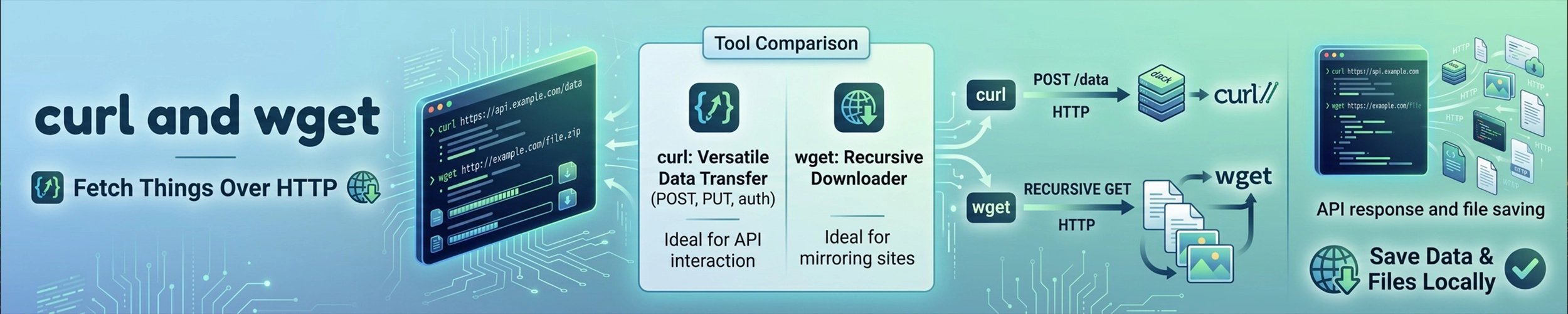
Both fetch things over HTTP. The difference in practice: curl is for talking to things — APIs, headers, authentication, sending data. wget is for taking things — downloading files, resuming, mirroring a site.
Most systems have both. If you only learn one, learn curl.
curl basics
curl https://example.com                 # print the body to the terminal
curl -o page.html https://example.com    # save to a filename you choose
curl -O https://example.com/file.tar.gz  # save using the remote filename
curl -L https://example.com              # follow redirects
curl -I https://example.com              # headers only
curl -s https://example.com # silent: no progress meter| Flag | What it does |
|---|---|
-L | Follow redirects — not the default |
-o FILE | Write to this filename |
-O | Write using the remote filename |
-I | Response headers only (a HEAD request) |
-i | Headers and body |
-s | Silent — hides progress and errors |
-S | Show errors even when silent — pair with -s |
-f | Fail with a non-zero exit code on HTTP errors |
-H | Add a request header |
-d | Send data (implies POST) |
-X | Set the HTTP method explicitly |
-u | Basic authentication, as user:password |
-k | Skip TLS certificate verification — see the warning below |
-w | Write out chosen variables after the transfer |
--retry N | Retry transient failures |
curl -sSfL is the combination worth memorising for scripts: silent, but still shows errors, fails properly on a 404, and follows redirects.
Talking to an API
# GET with an auth header
curl -H "Authorization: Bearer $TOKEN" https://api.example.com/v1/users

# POST JSON
curl -X POST https://api.example.com/v1/users \
  -H "Content-Type: application/json" \
  -d '{"name": "alice", "role": "admin"}'

# POST a JSON file
curl -X POST https://api.example.com/v1/users \
  -H "Content-Type: application/json" \
  -d @payload.json

# Form submission
curl -d "user=alice&action=login" https://example.com/login

# File upload
curl -F "file=@report.pdf" -F "title=Q3" https://example.com/upload

# Pipe the response through jq
curl -s https://api.example.com/v1/users | jq '.data[].name'-d implies POST, so -X POST alongside it is redundant — harmless, but you will see it everywhere. -X genuinely matters for PUT, PATCH and DELETE.
Keep tokens out of your shell history. A literal token on the command line is saved to ~/.bash_history and visible in ps to every user on the machine while the command runs. Put it in an environment variable, or use -H @headerfile / --netrc.
Debugging with curl
curl -v https://example.com              # request and response headers
curl -sI https://example.com | head -1   # just the status line

# Only the status code, nothing else
curl -s -o /dev/null -w "%{http_code}\n" https://example.com

# Where is the time going
curl -s -o /dev/null -w "dns %{time_namelookup}  connect %{time_connect}  tls %{time_appconnect}  total %{time_total}\n" https://example.com

# Trace a redirect chain
curl -sIL https://example.com | grep -i "^HTTP\|^location"That timing one-liner is the quickest way to tell whether a slow request is DNS, the TCP connection, the TLS handshake, or the server itself — four very different problems that all look like “the site is slow”.
wget
wget https://example.com/file.tar.gz     # save with the remote name
wget -O custom.tar.gz https://example.com/file.tar.gz
wget -c https://example.com/big.iso      # continue an interrupted download
wget -q https://example.com/file         # quiet
wget -b https://example.com/big.iso      # background, logs to wget-log
wget --limit-rate=500k https://example.com/big.iso
wget -i urls.txt # everything listed in a filewget’s advantages over curl are all about persistence: it follows redirects by default, retries by default, resumes with -c, and can run in the background. On a flaky connection downloading a large ISO, wget is simply the better tool.
Mirroring a site
wget --mirror --convert-links --adjust-extension --page-requisites \
--no-parent --wait=1 https://example.com/docs/--mirror— recursive, timestamped, infinite depth--convert-links— rewrite links so it works offline--page-requisites— also fetch CSS, images and scripts--no-parent— do not climb above the starting directory--wait=1— pause between requests
Include --wait. Without it wget will hammer a server as fast as it can respond, which is how you get an IP address blocked. Respect robots.txt, and do not mirror anything you do not have permission to copy.
Which one
| curl | wget | |
|---|---|---|
| Output | stdout by default | a file by default |
| Follows redirects | only with -L | by default |
| Resume | -C - | -c |
| Recursive download | no | yes |
| APIs, custom methods | excellent | limited |
| Protocols | very many | HTTP, HTTPS, FTP |
| Available as a library | yes (libcurl) | no |
Gotchas
curl does not follow redirects
Without -L you get an empty body and a 301, which in a script looks like the endpoint returned nothing. This is the most common curl surprise by a wide margin.
-s hides real failures
curl -s suppresses errors as well as the progress meter, and curl exits 0 on an HTTP 500 because the transfer succeeded. In a script that means a health check that never fails. Use -sSf.
Quote the URL
An unquoted & puts curl in the background and the rest of the URL becomes a separate command. Any URL with a query string needs quotes.
-k is not a fix
-k (or --insecure) tells curl to accept any certificate, which disables the guarantee that you are talking to who you think. It is fine against a local test server with a self-signed certificate. On anything else, a certificate error is information: expired certificate, wrong hostname, or a stale CA bundle. Fix the cause.
Think before piping to a shell
Plenty of projects tell you to run curl ... | sudo bash. It is convenient and it is also handing root to whatever that URL serves at the moment you run it — including if the domain later changes hands or the server is compromised.
Download it, read it, then run it:
curl -fsSLO https://example.com/install.sh
less install.sh
sudo sh install.shWhere the project publishes a checksum or signature, verify it. Where your distribution packages the software, prefer the package manager instead.
Quick reference
curl -sSfL URL                  # the safe default for scripts
curl -O URL                     # save with the remote filename
curl -I URL                     # headers only
curl -v URL                     # verbose, for debugging
curl -H "Authorization: Bearer $TOKEN" URL
curl -X POST -H "Content-Type: application/json" -d '{...}' URL
curl -s -o /dev/null -w "%{http_code}\n" URL    # just the status code

wget URL                        # download
wget -c URL                     # resume
wget -i urls.txt                # a list of URLs
wget --limit-rate=500k URL      # be polite
wget --mirror --no-parent --wait=1 URLRelated
- Package management — usually a better way to install software than a download script.
- ssh — for reaching services that are not exposed publicly, via a tunnel.
- grep and awk — for picking apart what comes back.
jq— the right tool for JSON responses.httpie— a friendlier curl for interactive API work.