

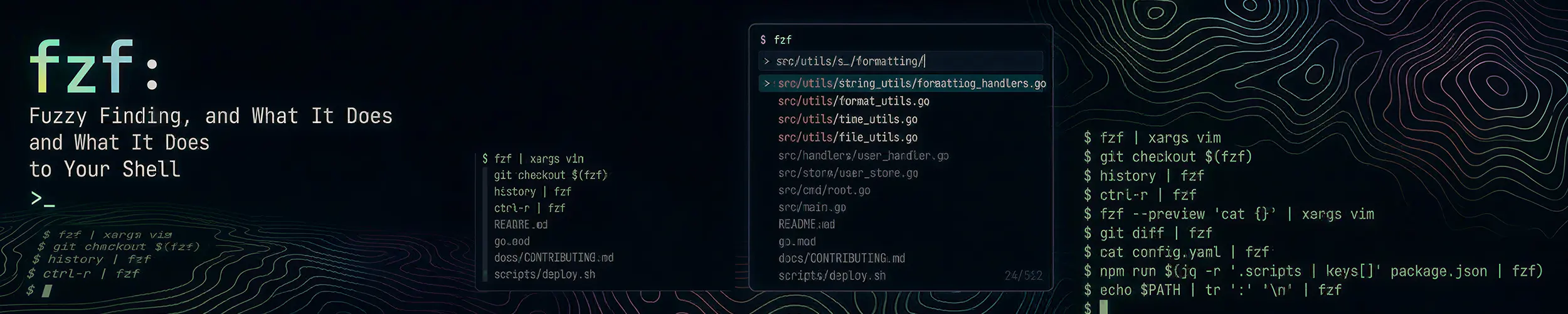
Most command-line tools take input and produce output. fzf does something different: it takes a list, shows it to you, lets you narrow it down by typing fragments of what you half-remember, and prints back what you chose.
That sounds small. In practice it changes the shape of a lot of daily work, because any list becomes something you can pick from — files, command history, git branches, running processes, SSH hosts, container names. Anything that produces lines can be piped into it.
Is it worth your time?
Yes, on any machine you use interactively. The improved Ctrl+R history search alone justifies it, and that takes one line of setup.
No, on servers. fzf is purely interactive — there is nothing for it to do in a script or an unattended job, and installing it on a fleet buys you nothing.
It is a component, not a product. The value comes from wiring it to your own lists, which is easier than it sounds.
Installing and wiring it up
sudo apt install fzf         # Debian, Ubuntu
sudo dnf install fzf         # Fedora, RHEL, Rocky, Alma
sudo pacman -S fzf           # Arch
brew install fzf # macOSInstalling the package is not enough. The keyboard shortcuts everyone talks about come from a shell integration you have to enable separately, which is why a lot of people install fzf, type Ctrl+R, see the old search, and conclude it does not work.
# Recent versions - add to ~/.bashrc
eval "$(fzf --bash)"

# For zsh, in ~/.zshrc
eval "$(fzf --zsh)"

# Older Debian and Ubuntu packages instead ship these files:
source /usr/share/doc/fzf/examples/key-bindings.bash
source /usr/share/doc/fzf/examples/completion.bashOpen a new shell afterwards. You now have three bindings:
| Key | Does |
|---|---|
Ctrl+R | Search command history, fuzzily |
Ctrl+T | Pick a file and insert its path on the current line |
Alt+C | Pick a directory and cd into it |
Ctrl+R is the one that changes your day. Bash’s built-in history search steps backwards one match at a time and cannot go forwards. fzf’s shows every match at once, narrowing as you type, in any order — type rsync ex and you get every rsync command you have ever run that mentions exclude, whichever order the words appeared in.
That works best with a long history, so raise the limits while you are editing .bashrc:
HISTSIZE=50000
HISTFILESIZE=100000
HISTCONTROL=ignoreboth:erasedups
shopt -s histappendHow the matching works
By default fzf matches characters in order but not necessarily adjacent, so nglog finds /var/log/nginx/error.log. When that is too loose, the search syntax narrows it:
| Type | Means |
|---|---|
nginx | Fuzzy match |
'nginx | Exact substring |
^var | Starts with |
.log$ | Ends with |
!test | Does not contain |
nginx | apache | Either |
^var .log$ !access | All of these at once |
The negation is the underused one. Searching your history for docker !rm finds every docker command that was not a deletion, which is usually what you meant.
Inside the picker: arrows or Ctrl+J/Ctrl+K to move, Enter to choose, Esc to cancel, and Tab to select several when multi-select is enabled with -m.
Piping your own lists into it
This is where fzf stops being a history search and becomes a building block. The pattern is always the same: something produces lines, fzf picks one, something else acts on it.
# Pick a file and open it
fzf | xargs -r $EDITOR

# Pick a running service and check it
systemctl list-units --type=service --plain --no-legend \
  | awk '{print $1}' | fzf | xargs -r systemctl status

# Pick a process and kill it
ps aux | fzf --header-lines=1 | awk '{print $2}' | xargs -r kill

# Pick a container and get a shell in it
docker ps --format '{{.Names}}' | fzf | xargs -r -I{} docker exec -it {} sh

# Pick a git branch and switch to it
git branch --format='%(refname:short)' | fzf | xargs -r git switchxargs -r matters in every one of those: without -r, cancelling the picker with Esc runs the command with no argument, which for kill or git switch produces something between a confusing error and a genuinely bad outcome.
Turn the ones you use into functions in ~/.bashrc:
# Pick a file and edit it, with a preview
fe() {
  local file
  file=$(fzf --preview 'bat --color=always {} 2>/dev/null || cat {}') || return
  [ -n "$file" ] && $EDITOR "$file"
}

# Pick an SSH host from your config
fssh() {
  local host
  host=$(grep -E "^Host " ~/.ssh/config | awk '{print $2}' | grep -v '\*' | fzf) || return
  [ -n "$host" ] && ssh "$host"
}The || return handles cancellation properly, which is the difference between a helper you trust and one that occasionally does something surprising.
The preview window
--preview runs a command against whatever is currently highlighted and shows the result beside the list. It turns picking into browsing.
# See file contents as you move through the list
fzf --preview 'bat --color=always {}'

# Preview directory contents
fd -t d | fzf --preview 'eza --tree --level=1 {}'

# Browse git commits, with the diff alongside
git log --oneline | fzf --preview 'git show --color=always {1}'{} is the highlighted line and {1} is its first whitespace-separated field, which is why the git example works — it takes the commit hash off the front of each line.
Good defaults in ~/.bashrc:
export FZF_DEFAULT_OPTS="--height 40% --layout=reverse --border --info=inline"

# Use fd for file lists: faster, and skips .git and gitignored files
export FZF_DEFAULT_COMMAND='fd --type f --hidden --exclude .git'
export FZF_CTRL_T_COMMAND="$FZF_DEFAULT_COMMAND"--height 40% is worth setting on day one: by default fzf takes over the whole screen, and keeping it to part of the terminal means you can still see the command you were writing.
Note that the fd line inherits fd’s gitignore behaviour, so Ctrl+T will not offer files git ignores — usually what you want, occasionally baffling. find works as a substitute if you would rather see everything.
Things that catch people out
| Symptom | Cause |
|---|---|
Ctrl+R unchanged after installing | Shell integration not enabled — see above |
| Command runs after you press Esc | Missing xargs -r or || return |
| Filenames with spaces break | Quote the variable: "$file" |
| It takes over the whole screen | Set --height 40% |
| Some files never appear | Your FZF_DEFAULT_COMMAND uses fd, which honours gitignore |
| Preview is empty | The preview command failed — run it by hand to see why |
| Nothing works in a script | Correct. fzf needs a terminal. |
Where it does not belong
- Scripts and automation. fzf waits for a human. A cron job or a CI pipeline containing fzf hangs forever, which is a memorable way to learn this.
- Servers. It is a personal-machine tool. Nothing is gained by putting it on a fleet.
- As a replacement for knowing the commands. A picker is faster than typing a path; it is not a substitute for knowing what you are about to run. Reviewing a fuzzy-matched history entry before pressing Enter is a habit worth keeping, particularly for anything with
rmor--deletein it.
That last point is the honest caveat. Ctrl+R makes it very easy to recall and re-run a destructive command you only half-remember. Read the line before you commit to it.
Quick reference
| You want | Do this |
|---|---|
| Enable the shortcuts | eval "$(fzf --bash)" in ~/.bashrc |
| Search history | Ctrl+R |
| Insert a file path | Ctrl+T |
| Jump to a directory | Alt+C |
| Exact match | Prefix with ' |
| Exclude a term | Prefix with ! |
| Pick several | fzf -m, then Tab |
| Preview as you browse | fzf --preview 'bat --color=always {}' |
| Keep it small | --height 40% --layout=reverse |
| Act on the choice safely | Pipe to xargs -r |
Related reading
- find — generating the lists you pipe in
- grep — filtering before you pick
- Inspecting processes — the pick-and-kill pattern above
- ssh — and the host picker
- Getting started with Docker — picking a container to exec into
- Command line basics — pipes, quoting and why
"$file"is quoted