

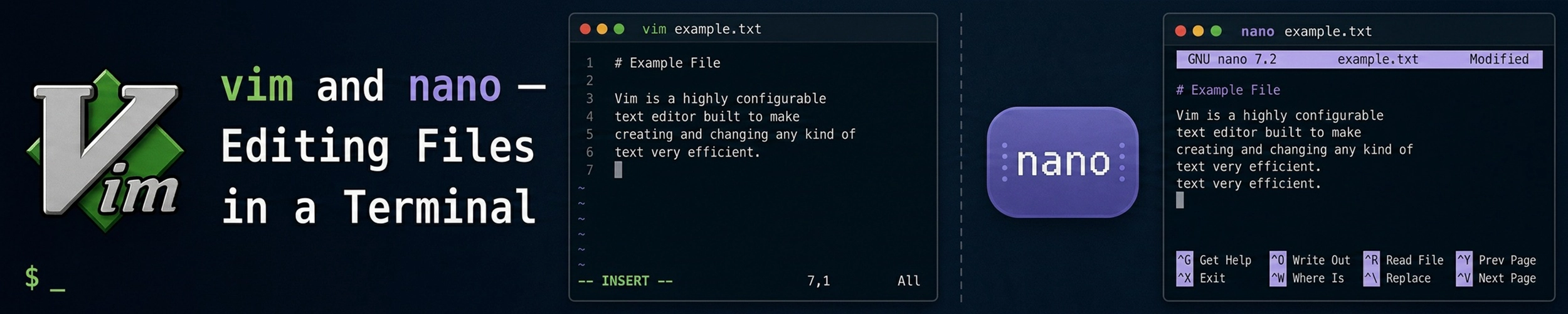
Sooner or later you will SSH into a server, type vim or find yourself dropped into it by git commit, and discover that nothing you try makes it stop. This page starts there.
How to exit vim
Press Esc first — that leaves whatever mode you are in. Then type one of these and press Enter:
| Type this | Result |
|---|---|
:q | Quit — refuses if there are unsaved changes |
:q! | Quit and discard everything |
:wq | Save and quit |
:x | Save and quit, but only writes if something changed |
ZZ | Same as :x, no colon needed |
If :q refuses and you do not care about your edits, :q! always works. If Esc seems to do nothing, press it a few times — you may be several modes deep.
Now the useful part: why it works that way.
vim is modal
Every other editor you have used is always in “typing” mode. vim is not. It has modes, and the keyboard means different things in each — which is the entire source of the confusion, and also the entire point.
| Mode | What keys do | How to get there |
|---|---|---|
| Normal | Move and edit — letters are commands | Esc (this is where you start) |
| Insert | Type text | i, a, o |
| Visual | Select text | v, V, Ctrl-v |
| Command | Run a command like :w | : |
In normal mode d deletes, x removes a character, p pastes. That is why typing a sentence into a fresh vim session appears to detonate the file — you were issuing commands, not writing.
The payoff is that editing becomes a small language. d is delete, w is a word, so dw deletes a word. 3dw deletes three. ci" is “change inside quotes”. Once the grammar clicks, it composes.
Minimum viable vim
Enough to edit a config file on a server without dread. Learn these ten and stop:
| Key | Does |
|---|---|
i | Insert before the cursor — start typing |
Esc | Back to normal mode |
:w | Save |
:q | Quit |
dd | Delete the current line |
u | Undo (press repeatedly) |
Ctrl-r | Redo |
/text | Search forwards — n for the next match |
gg / G | Top of file / bottom of file |
:42 | Jump to line 42 |
Arrow keys work in modern vim, so hjkl can wait. When you want more:
0    $         # start / end of line
w    b         # forward / back one word
A              # jump to end of line and start inserting
o    O         # open a new line below / above and insert
yy   p         # copy a line / paste it
cw             # change a word
.              # repeat the last change
:%s/old/new/g  # replace throughout the file
:noh # clear search highlighting:%s/old/new/g is the same substitution syntax as sed, which is not a coincidence — both inherit it from ed.
vimtutor is installed alongside vim on most systems. It is a genuinely good half-hour and the best return on time available here.
nano
nano is not modal. You open it, you type, the shortcuts are listed along the bottom of the screen. For editing one line of a config file it is the sensible choice, and there is no shame in it.
| Keys | Does |
|---|---|
Ctrl-O | Write the file (then Enter to confirm the name) |
Ctrl-X | Exit — prompts to save if needed |
Ctrl-W | Search (“where is”) |
Ctrl-K | Cut the current line |
Ctrl-U | Paste it back |
Ctrl-\ | Search and replace |
Alt-U | Undo |
Ctrl-G | Help |
The ^ in nano’s on-screen help means Ctrl, and M- means Alt (or Esc then the key). ^O for save is unintuitive — it is “write Out” — and is the one thing worth memorising.
Useful invocations:
nano -l file          # show line numbers
nano +42 file         # open at line 42
nano -w file          # no line wrapping — important for config files
nano -B file # keep a backup of the original-w matters more than it sounds. Without it nano may hard-wrap long lines, which can silently break a config file where a directive must stay on one line.
Which one
Use nano when you want to change a line and leave. Learn vim if you edit on servers regularly — not for the ideology, but because vi is guaranteed to exist on essentially every Unix system, including minimal containers, rescue environments and appliances where nano was never installed. It is the editor you can rely on being there.
Set your preference so tools stop surprising you:
export EDITOR=nano       # add to ~/.bashrc
export VISUAL=nano
sudo update-alternatives --config editor # Debian, Ubuntu: set it system-wideThat is what git commit, crontab -e and visudo obey — see cron and sudo. Note that visudo may use its own setting, and that sudo resets the environment, so sudo nano is sometimes needed explicitly.
Gotchas
You opened it without permission to save
You edit /etc/nginx/nginx.conf, then :w fails because the file is root-owned. Rather than losing the work, hand the write to sudo from inside vim:
:w !sudo tee % > /dev/null% is the current filename, and the same tee trick from the sudo page does the writing. Then :q!. In nano, save to a path in /tmp with ^O and move it afterwards.
“Swap file already exists”
vim writes a .swp file while editing. If it was killed — a dropped SSH session, a closed laptop — the swap file survives and vim asks what to do on reopening. Press R to recover your unsaved changes, then :w, then delete the swap file it names. Pressing D deletes the recovery data, so read the prompt before answering.
Pasted text arrives mangled
Paste indented code into insert mode and auto-indent applies on top of the indentation already there, producing a widening staircase. The fix:
:set paste     # paste, then
:set nopasteRecent vim versions handle bracketed paste automatically, so you may never see this — but on an older server you will.
The terminal froze
You pressed Ctrl-S out of habit to save. That is not the editor — it is the terminal’s flow control, which stops output entirely and looks exactly like a hang. Ctrl-Q unfreezes it. Nothing was lost.
vi is not always vim
On minimal systems vi may be a smaller implementation where arrow keys insert stray letters in insert mode and undo is single-level. If editing feels unusually hostile, that is probably why. hjkl works everywhere, which is the real argument for learning it.
Quick reference
# vim — press Esc first
:q      quit          :q!     quit, discard
:w      save          :wq     save and quit
i       insert         Esc     back to normal
dd      delete line    u       undo      Ctrl-r  redo
/text   search         n       next match
gg  G   top / bottom   :42     go to line 42
yy  p   copy / paste   .       repeat last change
:%s/old/new/g          replace throughout
:w !sudo tee % > /dev/null    save a root-owned file

# nano — ^ means Ctrl
^O  write     ^X  exit      ^W  search
^K  cut line  ^U  paste     ^\  replace
M-U undo      ^G  help
nano -lw file line numbers, no wrappingRelated
- sed — the same substitution syntax, for when you do not want to open an editor at all.
- sudo —
sudoedit, and why saving a root-owned file needs a trick. - cron —
crontab -eopens whateverEDITORsays. - grep — finding the line before you go and edit it.
vimtutor— thirty minutes, and the best way to learn this properly.