

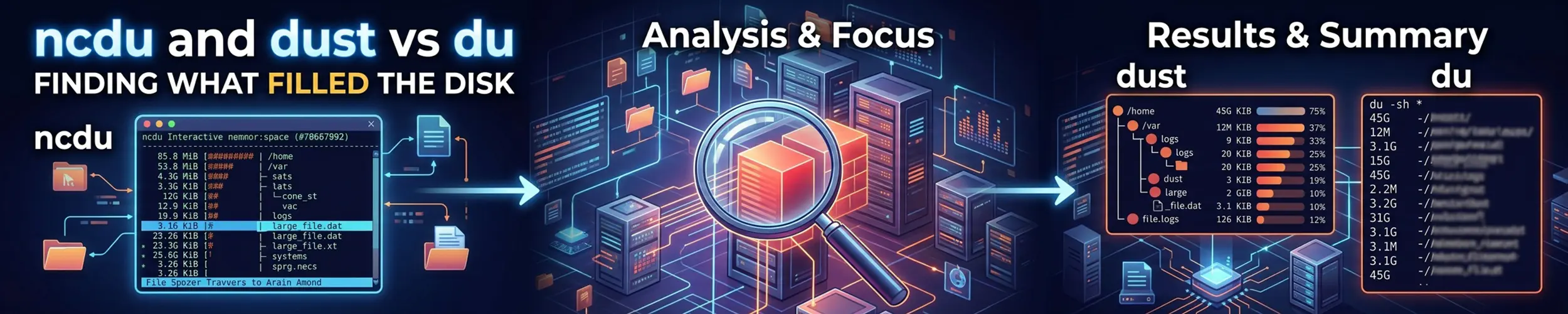
“No space left on device” is one of the most disruptive errors a machine produces, because everything downstream of it fails in ways that look unrelated. The question is always the same — what is taking the space? — and du answers it in a format that makes you work for it.
# The classic incantation, which you have typed a hundred times
sudo du -h --max-depth=1 /var | sort -h

# ncdu, doing the same job
sudo ncdu /varThe difference is that du gives you one level and you re-run it for the next, while ncdu scans once and lets you walk down into the tree with the arrow keys — and delete things when you find them.
The short verdict
Install ncdu on any server you look after. Hunting down disk usage is exactly the kind of exploratory, drill-down task that a text interface does far better than repeated commands, and it is the one modern tool here that changes how the job feels.
Keep du for scripts, monitoring and machines you cannot install onto. It is everywhere and its output is parseable.
dust is du with a nicer default output — a good one-shot answer, no interface to navigate.
The three, compared
| du | ncdu | dust | |
|---|---|---|---|
| Preinstalled | Always | No | No |
| Sorted by size | Only if you pipe to sort | Yes | Yes |
| Drill down interactively | No | Yes | No |
| Delete from the results | No | Yes, with d | No |
| Visual proportions | No | Bars | Bars |
| Scan once, browse many times | No | Yes | No |
| Export and re-open a scan | No | Yes | No |
| Parseable output | Yes | JSON export | Not really |
| Good in a script | Yes | No | No |
# ncdu
sudo apt install ncdu
sudo dnf install ncdu
sudo pacman -S ncdu

# dust - packaged as du-dust on Debian and Ubuntu
sudo apt install du-dust
sudo pacman -S dustncdu is tiny, has no dependencies worth worrying about, and is packaged everywhere. It is one of the easiest tools to justify installing on a fleet.
Using ncdu
Point it at a directory, wait for the scan, then navigate.
| Key | Does |
|---|---|
| Arrows / Enter | Move around and descend |
| Left arrow | Back up a level |
d | Delete the selected file or directory |
n / s | Sort by name / by size |
g | Cycle between percentages and bars |
a | Toggle apparent size vs disk usage |
i | Information about the selected item |
t | Group directories before files |
q | Quit |
d deletes immediately after one confirmation, and there is no undo and no trash. That convenience is precisely why ncdu is quick, and precisely why you should be deliberate with it. Never delete something in ncdu that you have not identified — a large directory under /var/lib is often a database, not junk.
Some useful invocations:
# Scan from the root, but stay on this filesystem
sudo ncdu -x /

# Skip directories you already know about
sudo ncdu --exclude /proc --exclude /sys /

# Scan a whole filesystem the fast way, then browse offline
sudo ncdu -1xo- / > /tmp/scan.json
ncdu -f /tmp/scan.json-x is the flag to remember. Without it, a scan of / descends into every mounted filesystem — network shares, backup disks, container overlays — which takes forever and answers the wrong question. You almost always want to know what filled this filesystem.
The export trick in the last example solves a real problem. Scanning a large filesystem takes minutes; exporting the result means you can browse it repeatedly, copy it to your laptop, or keep it for comparison after you have cleaned up. On a busy server it also means the expensive part happens once.
The one situation ncdu cannot help with
Worth stating plainly, because it is the moment you most want it: if the disk is already completely full, you may not be able to install ncdu. Package managers need space to download and unpack. This is the case for having it installed before you need it, and the case for knowing the du incantation regardless.
The emergency sequence with only du:
# 1. Which filesystem is actually full?
df -h

# 2. And check inodes - these run out separately
df -i

# 3. Walk down, one level at a time
sudo du -h --max-depth=1 / | sort -h
sudo du -h --max-depth=1 /var | sort -h
sudo du -h --max-depth=1 /var/lib | sort -h

# 4. Or find the biggest individual files
sudo find / -xdev -type f -size +500M -exec ls -lh {} \; 2>/dev/nullStep 2 catches a case that confuses people badly: df -h showing plenty of space while writes still fail with “No space left on device”. That is inode exhaustion — millions of tiny files, usually a session directory or a mail queue — and no amount of deleting large files will fix it. You need to delete many files, not big ones.
The deleted-but-still-held trap
The other classic: you delete a large log file, df shows no improvement, and both du and ncdu insist the space is free. Neither tool is wrong — the file is gone from the directory, but a process still has it open, so the kernel has not released the blocks.
# Find deleted files still being held open
sudo lsof +L1

# Then restart the process holding it, or truncate in place:
sudo truncate -s 0 /proc/PID/fd/3Restarting the offending service is the simpler fix and usually the right one. The lesson for next time is to truncate a growing log rather than delete it: sudo truncate -s 0 /var/log/huge.log frees the space immediately without upsetting the process writing to it.
Where dust fits
dust is the middle option: no interface, but sorted output with proportion bars, which is what you actually wanted from du in the first place.
# Sensible output straight away
dust

# Top 20 entries
dust -n 20

# Limit the depth
dust -d 2 /var

# Biggest files rather than directories
dust -FUse dust when you want a quick answer and ncdu when you want to explore and clean up. If you only install one, install ncdu — the ability to delete from the results is worth more than the prettier output.
Where du is still the right answer
- In scripts and monitoring. A cron job that alerts when a directory passes a threshold needs a number, not an interface.
du -sgives exactly that. - On a full disk, where installing anything may be impossible.
- On machines you do not control — the usual reason.
- For one specific number:
du -sh /var/logis faster to type than launching anything.
# The scripting shape: bytes, no formatting, one number
USED=$(du -sb /var/lib/mysql | cut -f1)

# A directory's total, human readable
du -sh /var/logSame rule as the rest of this section: learn du, install ncdu. Keep the du -h --max-depth=1 ... | sort -h pattern in your fingers, because it works on any Unix machine ever built, and put ncdu on everything you own so you rarely need it.
The usual culprits
On a server, the answer is nearly always one of these, and knowing the list saves a lot of drilling:
| Location | Usually | Safe to clear? |
|---|---|---|
/var/log/ | Logs that never rotated | Yes, carefully |
/var/lib/docker/ | Images and layers | docker system prune |
/var/cache/ | Package caches | Yes |
/var/lib/mysql/ | Your database | No |
/var/lib/snapd/ | Old snap revisions | Yes, via snap |
/boot/ | Old kernels | Via the package manager only |
/home/ | Someone’s downloads | Ask them |
/tmp/ | Abandoned temporary files | Usually |
Two cautions on that table. Never clear /boot by hand — use sudo apt autoremove --purge or the dnf equivalent, because deleting the running kernel’s files makes the machine unbootable. And /var/lib is application state, not cache: the directory that looks like an easy 40 GB win is frequently the database. The Linux filesystem covers that distinction.
Quick reference
| You want | Command |
|---|---|
| Which filesystem is full | df -h |
| Out of inodes, not space | df -i |
| Explore and clean up | sudo ncdu -x / |
| One level, classic | sudo du -h --max-depth=1 /var | sort -h |
| One directory’s total | du -sh /var/log |
| Quick sorted overview | dust |
| Scan once, browse later | ncdu -1xo- / > scan.json |
| Deleted file still held open | sudo lsof +L1 |
| Empty a log safely | sudo truncate -s 0 file.log |
Related reading
- Checking disk space — df, du and the inode trap in full
- htop and btop vs top — the same idea, for processes
- fd vs find — locating the large files themselves
- The Linux filesystem — what is safe to delete and what is not
- Getting started with Docker — pruning images, a very common culprit
- Disks and mounting — when the answer is to add storage