

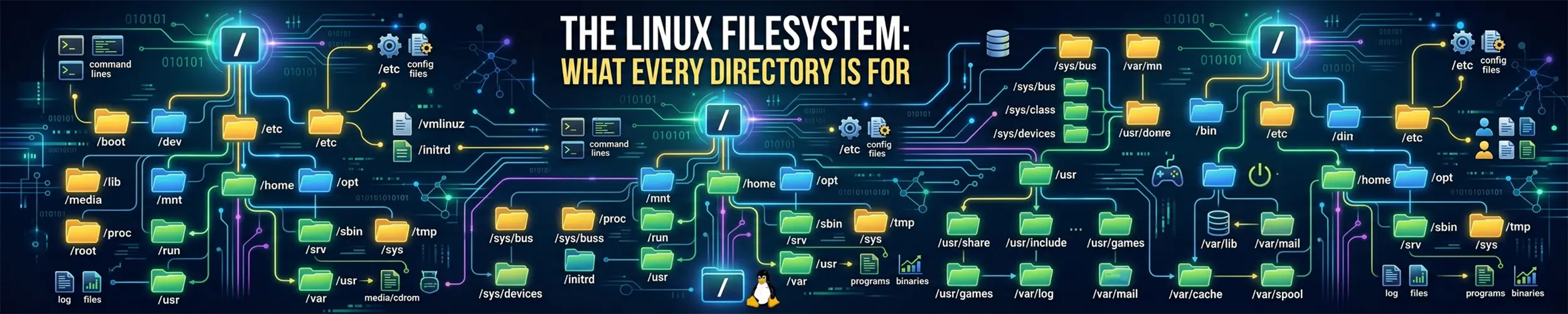
Open the root of a Linux system and you get about twenty directories with terse names, several of which look like they do the same thing. /bin and /sbin and /usr/bin. /etc full of everything. /var, /opt, /srv, all apparently for “stuff”.
There is a logic to it, and once you have it you can guess where an unfamiliar file lives instead of searching for it. The organising idea is that directories are separated by who writes to them and how often — not by what kind of software they belong to.
One tree, not several drives
Linux has no drive letters. There is exactly one tree, starting at /, and every storage device appears somewhere inside it. A second hard disk is not “D:” — it is mounted at a directory such as /mnt/backup, and from then on it simply looks like part of the tree.
That means a path never tells you which physical device a file is on. df -h /var/log answers that question; the path alone does not. It also means “the disk is full” is an incomplete statement — which filesystem is full matters, because / and /home are often separate.
The map
| Directory | Holds | You go here to |
|---|---|---|
/etc | System-wide configuration | Change how anything is configured |
/var | Data that changes: logs, caches, spools, databases | Read logs, find what filled the disk |
/home | Users’ personal files | Everything you own |
/usr | Installed software and its data | Rarely, directly |
/tmp | Temporary files, cleared on reboot | Scratch space |
/opt | Self-contained third-party software | Find something installed outside the package manager |
/srv | Data served by this machine | Sometimes web roots |
/root | The root user’s home | When logged in as root |
/boot | Kernel and bootloader | Boot problems, or when it fills up |
/dev | Device files | Reference disks and devices |
/proc | Live kernel and process information | Inspect a running system |
/sys | Kernel and hardware interfaces | Tweak hardware settings |
/mnt, /media | Mounted filesystems | Reach a USB stick or extra disk |
/lib, /bin, /sbin | Symlinks into /usr on modern systems | Nothing, deliberately |
If you remember only three: /etc is configuration, /var is changing data, /home is yours. Those three cover the overwhelming majority of reasons you will ever navigate deliberately.
/etc — configuration
Every system-wide setting lives here, in plain text. That is one of the genuinely good design decisions in Unix: configuration is readable, greppable, diffable and version-controllable, with no binary registry.
| Path | What it configures |
|---|---|
/etc/fstab | Which filesystems mount at boot |
/etc/passwd, /etc/group | Users and groups |
/etc/shadow | Password hashes (root-only) |
/etc/ssh/sshd_config | The SSH server |
/etc/hosts | Local name overrides, before DNS |
/etc/crontab, /etc/cron.d/ | System scheduled jobs |
/etc/systemd/system/ | Your own service units |
/etc/nginx/, /etc/apache2/ | Web servers |
Two conventions are worth internalising. Many packages use a NAME.d/ directory alongside the main file — /etc/cron.d/, /etc/sudoers.d/, /etc/nginx/conf.d/ — where dropping in a new file adds configuration without editing anything shipped by the package. That is almost always the better way to make a change, because package updates will not fight you over it.
And when both /usr/lib/systemd/system/ and /etc/systemd/system/ contain the same unit name, /etc wins. The rule generalises: the distribution ships defaults under /usr, and your overrides go in /etc.
Because /etc is small and text-only, backing it up is cheap and repays itself the first time you rebuild a machine:
sudo tar czf etc-backup-$(date +%F).tar.gz /etc/var — data that changes
Everything that grows while the machine runs. This is where disks fill up, and it is the first place to look when they do.
| Path | Contains |
|---|---|
/var/log/ | Log files — the first place to look when anything breaks |
/var/lib/ | Application state: databases, package manager records, Docker images |
/var/cache/ | Cached data, safe to delete |
/var/spool/ | Queues: mail, print, cron jobs |
/var/www/ | Website files, by convention on Debian family |
/var/tmp/ | Temporary files that survive a reboot |
The distinction between /var/lib and /var/cache matters more than it looks. /var/lib is real state — deleting /var/lib/mysql deletes your databases. /var/cache is regenerable and can be cleared freely. When you are hunting for space, that is the line between safe and catastrophic.
# The standard "what is eating my disk" sequence
df -h
sudo du -h --max-depth=1 /var | sort -h
sudo du -h --max-depth=1 /var/lib | sort -hOn a server the answer is almost always logs, a Docker image cache, or a database. Checking disk space covers the full method, including the inode trap where df -h shows free space but writes still fail.
/usr — installed software
/usr does not stand for “user” in any modern sense; read it as “Unix System Resources”. It holds everything the package manager installs: programs, libraries, documentation, icons.
| Path | Contains |
|---|---|
/usr/bin/ | Nearly every command you type |
/usr/sbin/ | Administrative commands |
/usr/lib/ | Shared libraries |
/usr/share/ | Architecture-independent data: man pages, icons, timezone data |
/usr/local/ | Software you installed yourself, outside the package manager |
/usr/local is the one to remember. When you compile something from source or drop in a downloaded binary, it belongs in /usr/local/bin, not /usr/bin. The package manager owns /usr/bin and will happily overwrite what it finds there; /usr/local is reserved for you and survives updates.
Why /bin and /usr/bin both exist
Historically, /bin held the minimum needed to boot and repair a system when /usr was on a separate, possibly unmounted disk; /usr/bin held everything else. That distinction stopped being useful once initramfs took over early boot, so modern distributions have merged them — /bin is now a symlink to /usr/bin.
ls -ld /bin /sbin /lib
# lrwxrwxrwx ... /bin -> usr/binSo do not agonise over the difference. Both paths reach the same file, and which tells you what you are actually running.
/home and dotfiles
Each user gets /home/username, referred to as ~. Root is the exception: its home is /root, deliberately outside /home so that root can still log in when /home lives on a disk that failed to mount.
Personal configuration lives in files beginning with a dot, which ls hides unless you pass -a:
| Path | What it is |
|---|---|
~/.bashrc | Shell settings, aliases, prompt |
~/.ssh/ | Your keys, known_hosts and client config |
~/.config/ | Where most modern applications now store settings |
~/.local/bin/ | Programs installed just for you |
~/.cache/ | Per-user cache; safe to delete |
The consequence worth knowing: backing up /home backs up your settings as well as your documents. Restore a home directory onto a fresh machine and your shell, keys and application preferences come back with it.
/proc and /sys — not really files
These two look like directories but exist only in memory. Reading a file in /proc asks the kernel a question and the answer is generated as you read it.
# CPU and memory, straight from the kernel
cat /proc/cpuinfo
cat /proc/meminfo

# How long the machine has been up, in seconds
cat /proc/uptime

# Everything about one running process
ls /proc/1481/
cat /proc/1481/cmdline
ls -l /proc/1481/cwd        # its working directory
ls -l /proc/1481/fd/ # every file it has openEvery numbered directory in /proc is a running process. This is where ps, top and free get their information — they are formatting what is already here. It is also genuinely useful: /proc/PID/fd/ shows exactly which files a stuck process has open, including a deleted file it is still holding, which is the classic explanation for disk space that does not come back after you delete something.
/sys is the same idea for hardware, and unlike /proc you can often write to it — screen brightness, CPU governor, and similar knobs live there.
Where should I put my own files?
| What | Where |
|---|---|
| A script only you use | ~/.local/bin/ |
| A script for everyone on the machine | /usr/local/bin/ |
| Software compiled from source | /usr/local/ |
| A vendor’s self-contained application | /opt/vendorname/ |
| Website files | /var/www/ or /srv/ |
| Your own service unit | /etc/systemd/system/ |
| Scratch, disposable at reboot | /tmp/ |
| An extra disk or USB stick | /mnt/ or /media/ |
The one thing not to do is scatter files into / itself. It is technically allowed and it makes a machine unpleasant for everyone who touches it afterwards, yourself in six months included.
Finding things
# Which file runs when I type this command?
which nginx
command -v nginx

# Binary, source and man page in one
whereis nginx

# Which package installed this file?
dpkg -S /usr/sbin/nginx      # Debian, Ubuntu
rpm -qf /usr/sbin/nginx      # Fedora, RHEL
pacman -Qo /usr/bin/nginx    # Arch

# Every file a package installed
dpkg -L nginx
rpm -ql nginxdpkg -L and rpm -ql are underused. When you have installed something and cannot find its configuration, listing the package’s files answers it immediately rather than guessing. For everything else there is find.
Quick reference
| You want | Look in |
|---|---|
| To change a setting | /etc/ |
| To read a log | /var/log/ |
| To find what filled the disk | /var/ |
| Your own settings | ~/.config/, ~/.bashrc |
| A command’s actual location | which NAME |
| To install your own script | /usr/local/bin/ |
| Information about a running process | /proc/PID/ |
| Which filesystem a path is on | df -h /path |
One refinement to “one tree”, now that you have the map. The tree is not a property of the machine — it is a property of each process, assembled from its own root, its own working directory and its own set of mounts. Two processes on one machine can read the same absolute path and get two different files, with neither of them misconfigured, and that is how containers and sandboxed systemd units work. How a Path Becomes a File follows a pathname from its first character to an open file in six stages: why PATH_MAX limits names rather than trees, the trailing slash that quietly defeats O_NOFOLLOW, why .. is a live pointer rather than a text edit, and why realpath cannot give you “the” path of a file — because files do not have one.
Related reading
- Command line basics — paths, navigation and how to move around this tree
- find — locating files when you do not know where they are
- Checking disk space — tracking down what filled
/var - Disks and mounting — how devices join the tree, and
/etc/fstab - File permissions — who is allowed into which parts of it
- Links — why
/bincan be/usr/bin