

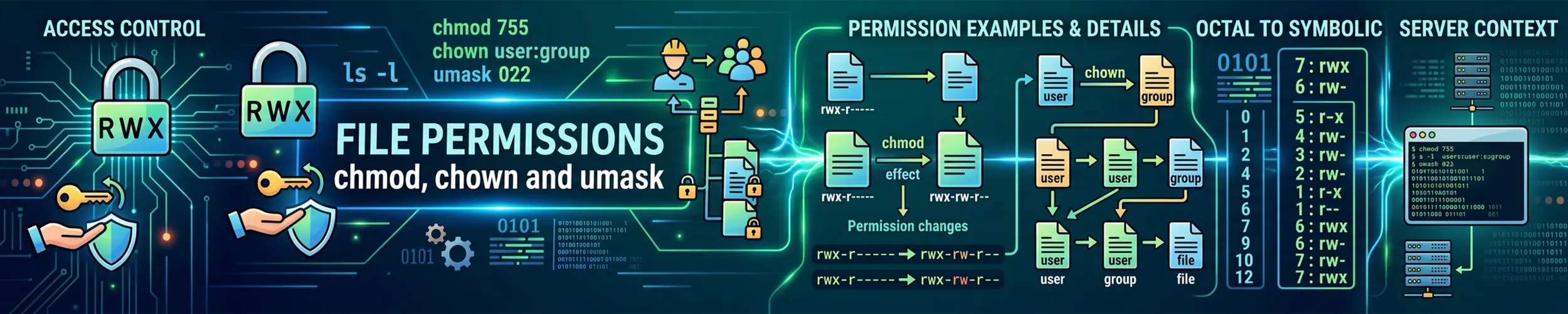
Linux file permissions look cryptic for about a week and then become second nature. The whole system rests on one small idea: every file has an owner and a group, and it carries three sets of three permission bits describing what the owner, the group, and everyone else may do with it.
Reading ls -l output
$ ls -l
-rw-r--r--  1 kevin  staff   1420 Aug 22 09:14 notes.txt
drwxr-xr-x  4 kevin  staff    128 Aug 21 17:02 projects
-rwxr-xr-x 1 root root 8792 Jul 30 11:45 backup.shThat first column is ten characters. Break it apart:
-  rw-  r--  r--
│   │    │    └─ other: what everyone else can do
│   │    └───── group: what members of the file's group can do
│   └────────── user: what the owner can do
└────────────── file typeThe leading character is the file type, not a permission:
| Character | Type |
|---|---|
- | Regular file |
d | Directory |
l | Symbolic link |
b | Block device (a disk) |
c | Character device (a terminal, /dev/null) |
s | Socket |
p | Named pipe |
So -rw-r--r-- is a regular file the owner can read and write, and everyone else can only read. drwxr-xr-x is a directory the owner has full access to, and others can enter and list.
What r, w and x actually mean
This is the part most guides skip, and it is where the real confusion lives — the three bits mean different things for files and directories.
| Bit | On a file | On a directory |
|---|---|---|
r | Read the contents | List the names inside it |
w | Modify the contents | Create, rename and delete entries inside it |
x | Execute it as a program | Enter it and access things inside by name |
Two consequences catch people out constantly:
- A directory with
rbut noxis nearly useless. You can see the file names but cannot open any of them. Directories almost always wantrandxtogether. - Deleting a file depends on the directory, not the file. If you have write permission on a directory you can delete any file in it — even a read-only file you do not own. This surprises people, and it is why the sticky bit exists.
Octal notation
Each permission has a numeric value: read is 4, write is 2, execute is 1. Add them up per group and you get a single digit.
| Digit | Symbolic | Meaning |
|---|---|---|
0 | --- | Nothing |
1 | --x | Execute only |
2 | -w- | Write only |
3 | -wx | Write and execute |
4 | r-- | Read only |
5 | r-x | Read and execute |
6 | rw- | Read and write |
7 | rwx | Everything |
Three digits, one each for user, group and other. The handful you will use daily:
| Mode | Symbolic | Typical use |
|---|---|---|
644 | rw-r--r-- | Ordinary files — owner edits, everyone reads |
755 | rwxr-xr-x | Directories, and scripts everyone may run |
600 | rw------- | Private files — SSH keys, credentials |
700 | rwx------ | Private directories — ~/.ssh |
664 | rw-rw-r-- | Files shared with a working group |
775 | rwxrwxr-x | Directories shared with a working group |
chmod
Two ways to write the same thing. Octal sets everything at once:
chmod 644 notes.txt
chmod 755 deploy.sh
chmod 600 ~/.ssh/id_ed25519Symbolic mode adjusts individual bits and leaves the rest alone. The pattern is who, then an operator, then what:
| Who | Operator | ||
|---|---|---|---|
u | user (owner) | + | add |
g | group | - | remove |
o | other | = | set exactly |
a | all three |
chmod +x script.sh          # make executable for everyone (subject to umask)
chmod u+x script.sh         # executable for the owner only
chmod go-w shared.txt       # remove write from group and other
chmod a=r readonly.txt      # exactly read-only for everyone
chmod u=rwx,go=rx bin/ # set each class explicitlySymbolic mode is the safer choice when you only want to change one thing, because octal always overwrites all nine bits.
Recursive changes, done properly
chmod -R 755 . is a common instinct and usually wrong — it marks every text file executable. Directories need x, ordinary files do not. Two better options:
# Capital X adds execute only where it makes sense (directories,
# and files that already had execute set somewhere)
chmod -R u=rwX,go=rX myproject/

# Or handle the two cases separately
find myproject/ -type d -exec chmod 755 {} +
find myproject/ -type f -exec chmod 644 {} +The capital X is one of the most useful things in chmod and almost nobody knows about it.
chown and chgrp
Permissions describe what each class may do; ownership decides who is in each class.
chown kevin file.txt              # change owner
chown kevin:developers file.txt   # change owner and group
chown :developers file.txt        # change group only
chgrp developers file.txt         # same thing, different command
chown -R www-data:www-data /var/www/htmlChanging ownership requires root. You cannot give your files away to another user — that restriction exists so people cannot dodge disk quotas.
Add --reference=otherfile to copy ownership from an existing file, which is handy when you are trying to match whatever the package manager set up.
umask: where default permissions come from
When you create a file you do not choose its permissions — the system does, by taking a base value and removing whatever bits your umask names. It is a mask of permissions to withhold.
- New files start from
666(rw-rw-rw-) - New directories start from
777(rwxrwxrwx)
With the common default umask of 022, you get 644 for files and 755 for directories. Note that files never get the execute bit automatically, regardless of umask — that is deliberate.
umask           # show current value
umask 077       # private by default: files 600, directories 700
umask 002 # group-collaborative: files 664, directories 775Set it in ~/.bashrc for your own account, or /etc/profile system-wide. umask 077 is a sensible habit on a shared machine.
The special bits
There is a fourth digit, prepended to the usual three, carrying three extra flags.
| Value | Name | Effect |
|---|---|---|
4 | setuid | Executable runs as its owner rather than as you |
2 | setgid | On a file: runs as its group. On a directory: new entries inherit the directory’s group |
1 | sticky | On a directory: only the owner of a file may delete it |
chmod 4755 /usr/bin/something   # setuid
chmod 2775 /srv/shared          # setgid — the useful one
chmod 1777 /tmp # sticky — how /tmp workssetgid on a shared directory is the one you will genuinely want. Without it, files created in a shared folder belong to each creator’s own primary group and teammates cannot edit them. With it, everything inherits the folder’s group and collaboration just works.
The sticky bit solves the delete problem described earlier. /tmp is world-writable so any program can create files there, but the sticky bit stops users deleting each other’s.
setuid deserves caution. A setuid-root program runs with full privileges no matter who launches it, so any bug in it is a potential root exploit. Do not set it on your own scripts — most systems ignore it on shell scripts anyway. Use sudo instead.
In ls -l these appear in place of the execute character: s for setuid or setgid, t for sticky. A capital S or T means the special bit is set but the underlying execute bit is not — usually a mistake.
Common problems
SSH refuses your key
SSH ignores keys and config files that others can read. This is the single most common permissions complaint:
chmod 700 ~/.ssh
chmod 600 ~/.ssh/id_ed25519
chmod 644 ~/.ssh/id_ed25519.pub
chmod 600 ~/.ssh/authorized_keysYour home directory must not be group- or world-writable either, which catches people who have run chmod 777 on it.
chmod 777 is not a fix
It is the standard advice in old forum posts and it is almost always wrong. It grants every user on the system full control, and on a web server it can turn a minor bug into remote code execution. When something cannot write to a directory, the real question is which user the process runs as — then chown to that user and set 755 or 775.
Permission denied on a file you can read
Check every directory in the path. You need x on each one to traverse it, so a locked-down parent directory blocks access to everything beneath it no matter how open those files are. namei -l /path/to/file prints the permissions at every level and will show you exactly where it breaks.
Permissions look right but access is still denied
Something else is in the way. Check for SELinux (ls -Z, common on Fedora and RHEL), AppArmor (Ubuntu), filesystem ACLs (getfacl), immutable flags (lsattr), or a filesystem mounted read-only.
Those are five separate mechanisms, each able to refuse on its own and most of them returning the same Permission denied. If you keep landing here, Permissions and Privilege, Properly works through all six layers in the order the kernel checks them, with the one command that inspects each.
Quick reference
ls -l file              # view permissions
stat file               # view them in detail, including octal
namei -l /path/to/file  # permissions at every level of the path
chmod 644 file          # set by octal
chmod u+x file          # adjust one bit
chmod -R u=rwX,go=rX d/ # recursive, done safely
chown user:group file   # change ownership
umask                   # show default mask
getfacl file # check for extended ACLsRelated commands
- find — locating files by permission, ownership or setuid bit, and fixing a whole tree safely.
- ssh — where permissions bite most often: a key SSH silently refuses because the directory is too open.
- tar — archives carry ownership, and restoring one as the wrong user is a classic way to break an application.
- systemctl — a service that runs by hand but fails under systemd is usually hitting a permissions problem.