

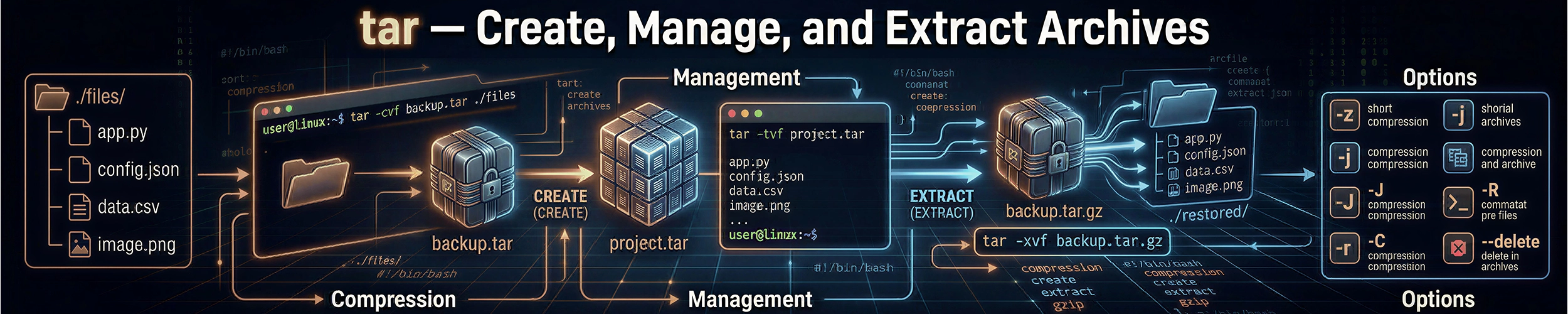
tar bundles many files into one. The name is short for tape archive, which explains a lot about its design — it was built for sequential tape drives in the 1970s and has kept the interface ever since. Almost nobody remembers its flags, which is why this page exists.
The three commands you need
tar -czf archive.tar.gz mydir/     # Create
tar -xzf archive.tar.gz            # eXtract
tar -tzf archive.tar.gz # lisT contentsIf you memorise nothing else, memorise those. The mnemonic that sticks for most people is create, extract, table-of-contents — and zf on the end of each.
Add v for verbose when you want to watch it work: tar -czvf. Leave it off in scripts.
What the letters mean
| Flag | Meaning |
|---|---|
-c | Create a new archive |
-x | Extract from an archive |
-t | List contents without extracting |
-f FILE | The archive filename — must come last among grouped flags |
-v | Verbose: print each file as it is processed |
-z | gzip compression (.gz) |
-j | bzip2 compression (.bz2) |
-J | xz compression (.xz) |
--zstd | zstd compression (.zst) |
-C DIR | Change to this directory first |
-p | Preserve permissions (default when root extracts) |
-f must be immediately followed by the filename. This is the classic tar mistake. tar -cfz archive.tar.gz dir/ looks reasonable and is wrong — it tells tar the archive is called z. Always write -czf, with f last.
Modern GNU tar can also detect the compression format automatically when extracting, so tar -xf archive.tar.xz works without -J. Being explicit is still a good habit for scripts that may run elsewhere.
Choosing a compression format
| Format | Flag | Speed | Ratio | Use when |
|---|---|---|---|---|
| gzip | -z | Fast | Moderate | The safe default — available everywhere |
| bzip2 | -j | Slow | Good | Largely superseded by xz |
| xz | -J | Very slow | Best | Distributing something compressed once, downloaded often |
| zstd | --zstd | Very fast | Good | Modern best all-rounder, if available |
For everyday backups gzip is almost always the right call — the extra time xz takes rarely repays itself. zstd is the genuine improvement of the last decade: close to xz ratios at gzip-like speeds. Note that compression is applied to the whole archive as a stream, which is why you cannot extract a single file from a compressed tarball without reading through everything before it.
Recipes
Extract into a specific directory
mkdir -p /opt/myapp
tar -xzf myapp.tar.gz -C /opt/myappThe target directory must already exist. -C works for creating too, and is the clean way to avoid burying absolute paths in the archive.
Strip a leading directory
tar -xzf myapp-1.4.2.tar.gz --strip-components=1 -C /opt/myappSource tarballs almost always unpack into a versioned folder like myapp-1.4.2/. --strip-components=1 removes that layer so the contents land directly where you want them. Underused and extremely handy.
Extract a single file
tar -tzf backup.tar.gz | grep config      # find its exact path first
tar -xzf backup.tar.gz path/inside/archive/config.ymlThe path must match exactly as stored in the archive, which is why you list first. Use --wildcards if you want a pattern: tar -xzf backup.tar.gz --wildcards "*/config.yml".
Exclude things
tar -czf site.tar.gz \
    --exclude="node_modules" \
    --exclude="*.log" \
    --exclude=".git" \
mysite/--exclude must appear before the directory being archived. Placed after, it is silently ignored — a genuinely nasty trap, because the command still succeeds and you only notice when the archive is far bigger than expected.
Back up a directory with a dated filename
tar -czf "backup-$(date +%F).tar.gz" -C /var/www html/date +%F gives 2026-08-23. Using -C /var/www html/ rather than /var/www/html keeps the stored paths relative, so the archive unpacks wherever you want it rather than insisting on its original location.
Archive over SSH
# Pull a remote directory straight into a local archive
ssh user@server "tar -czf - /var/www" > www-backup.tar.gz

# Push a local directory to a remote machine
tar -czf - localdir/ | ssh user@server "tar -xzf - -C /destination"-f - means “use standard output” (or input), which lets tar act as a stream in a pipeline. This avoids writing a temporary archive at either end. See the ssh page for the connection side of this.
Check an archive without unpacking it
tar -tzf archive.tar.gz | head -20      # what is in it, and how is it structured
tar -tzvf archive.tar.gz                # with permissions, sizes and dates
gzip -t archive.tar.gz # is the compression intactGotchas
Tar bombs
A well-behaved tarball contains a single top-level directory. A badly made one scatters hundreds of files directly into whatever directory you extracted it in, and cleaning that up by hand is miserable.
Always list before extracting something you did not create:
tar -tzf unknown.tar.gz | headOr extract into a fresh directory with -C, which makes the question moot. GNU tar also offers --one-top-level, which wraps the contents in a directory named after the archive automatically.
Absolute paths
tar strips the leading / when creating an archive and warns you about it. That is a safety feature — it stops an archive from overwriting system files on extraction. Do not defeat it with -P unless you have a specific reason and know where it will land.
Permissions and ownership
When root extracts an archive, tar restores the original ownership by default. When a normal user extracts, everything ends up owned by them. This catches people restoring backups as the wrong user — the files arrive but the application cannot read them.
Use --no-same-owner to force files to belong to the extracting user, or --same-owner to insist on the original. See file permissions for the wider picture.
tar is not a backup strategy
It has no deduplication, no incremental support worth relying on, and no integrity verification beyond the compression checksum. A single corrupted byte early in a compressed tarball can render the remainder unreadable. For real backups look at restic, borg, or rsync with hard-linked snapshots. tar is for packaging and moving things.
.tar.gz vs .tgz
Identical. .tgz is an abbreviation from the days of 8.3 filenames. Likewise .tbz2 and .txz.
Quick reference
tar -czf out.tar.gz dir/           # create, gzip
tar -xzf in.tar.gz                 # extract
tar -tzf in.tar.gz                 # list
tar -xzf in.tar.gz -C /target      # extract elsewhere
tar -xzf in.tar.gz --strip-components=1   # drop the top directory
tar -czf out.tar.gz --exclude=".git" dir/ # exclude (before the path)
tar -xf archive.tar.xz             # auto-detect compression
tar -tzvf in.tar.gz # list with detailsRelated commands
gzip,xz,zstd— compress single files; tar handles the bundling.zipandunzip— when you need to hand an archive to a Windows user.rsync— for syncing directories rather than packaging them.- find — select exactly which files to archive, then feed them to tar with
-T -.