

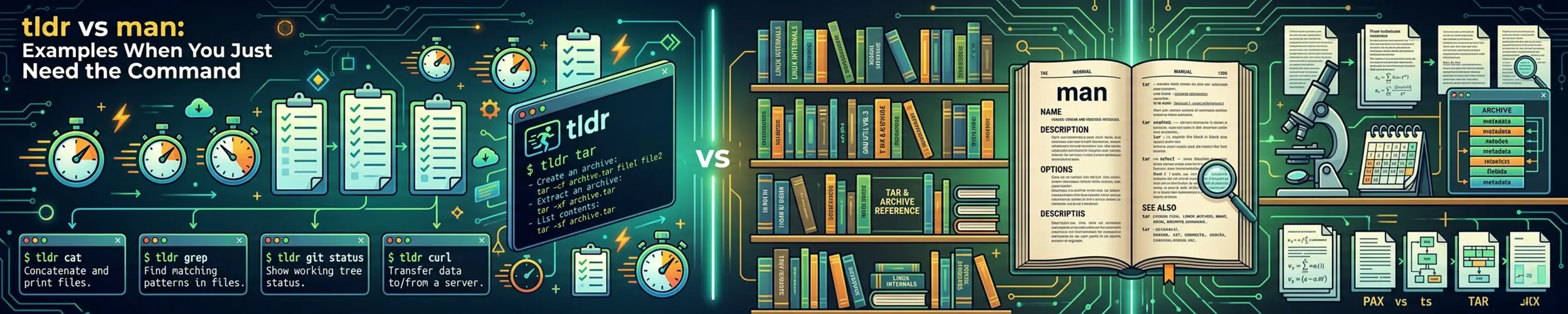
You need to extract a tar archive. You know tar does it. You run man tar and get roughly a thousand lines describing every option the command has accumulated since 1979, in alphabetical order, with the one you want buried somewhere in the middle.
tldr tar

  Archiving utility.
  Often combined with a compression method, such as `gzip` or `bzip2`.
  More information: <https://www.gnu.org/software/tar/manual/tar.html>.

  [c]reate an archive and write it to a [f]ile:

      tar cf path/to/target.tar path/to/file1 path/to/file2 ...

  [c]reate a g[z]ipped archive and write it to a [f]ile:

      tar czf path/to/target.tar.gz path/to/file1 path/to/file2 ...

  [c]reate a g[z]ipped (compressed) archive from a directory using relative paths:

      tar czf path/to/target.tar.gz [-C|--directory] path/to/directory .

  E[x]tract a (compressed) archive [f]ile into the current directory [v]erbosely:

      tar xvf path/to/source.tar[.gz|.bz2|.xz]

  E[x]tract a (compressed) archive [f]ile into the target directory:

      tar xf path/to/source.tar[.gz|.bz2|.xz] [-C|--directory] path/to/directory

  [c]reate a compressed archive and write it to a [f]ile, using the file extension to [a]utomatically determine the compression program:

      tar caf path/to/target.tar.xz path/to/file1 path/to/file2 ...

  Lis[t] the contents of a tar [f]ile [v]erbosely:

      tar tvf path/to/source.tar

  E[x]tract files matching a pattern from an archive [f]ile:

tar xf path/to/source.tar --wildcards "*.html"Twelve lines, and the answer is one of them. That is the entire pitch.
The short verdict
Reach for tldr first. Nine times out of ten you want the common invocation, and it gives you that in five seconds.
Go to man when tldr does not have it — an unusual flag, exact behaviour, the version on this machine, or anything you are about to run with sudo against production.
They are not really competing. tldr is a cheat sheet; man is the specification. Cheat sheets are wrong sometimes; specifications are not.
The difference that matters
| man | tldr | |
|---|---|---|
| Written by | The software’s authors | Community volunteers |
| Describes | Every option, exhaustively | The handful people use |
| Matches your installed version | Yes | Not necessarily |
| Length | Hundreds to thousands of lines | Under twenty |
| Authoritative | Yes | No |
| Works offline | Yes | Yes, once cached |
| Installed everywhere | Yes | No |
| Covers your distro’s patches | Yes | No |
Two rows carry the whole argument. The man page on your machine documents the binary on your machine — the right version, including whatever your distribution patched. A tldr page describes the command in general, as someone understood it when they wrote the entry.
And tldr is community-written. The pages are good, reviewed on GitHub and genuinely useful — but they are not a contract. For ls that does not matter. For dd, mkfs, rsync --delete or anything that writes to a disk, the difference between “usually right” and “specified” is the difference between a normal afternoon and restoring from backup.
Installing tldr
tldr is a page collection with several client programs. The fastest is tealdeer, written in Rust; the original is a Node client.
# tealdeer - recommended, and the command is still 'tldr'
sudo apt install tealdeer
sudo dnf install tealdeer
sudo pacman -S tealdeer

# Or the original client
npm install -g tldr

# Fetch the pages before you need them offline
tldr --updateRun tldr --update once after installing. The pages are then cached locally and lookups are instant and work without a network — which matters, because the moments you most want a quick reminder are often the moments you are on a machine with no internet access.
# Ordinary use
tldr tar
tldr systemctl
tldr ssh

# Platform-specific pages
tldr -p linux df
tldr -p osx df

# What pages exist
tldr --listThe man features almost nobody uses
Before writing man off as unreadable, it is worth knowing that most of the pain comes from not knowing how to search it. Three things fix most of that.
1. Search inside the page. man opens in less, so / searches and n jumps to the next hit. Looking for what -z does? Type /-z and press Enter. This alone turns a thousand-line page into a lookup.
man tar
# then:  /--exclude   Enter   n  n  n
# q to quit2. Search across all pages when you do not know the command’s name:
# Which commands mention this?
man -k compress
apropos "list directory"

# One-line description of a command
whatis rsyncman -k is the answer to “there is a command for this and I cannot remember it”, which is a question tldr cannot help with at all.
3. Know about the sections. Manual pages are numbered by category, and the same name can appear in several. This is why man passwd shows you the command while the file format lives elsewhere.
| Section | Contains | Example |
|---|---|---|
| 1 | User commands | man 1 passwd |
| 2 | System calls | man 2 open |
| 3 | Library functions | man 3 printf |
| 5 | File formats | man 5 passwd, man 5 crontab |
| 8 | Administration commands | man 8 mount |
Section 5 is the underused one. man 5 crontab explains the file format — the five time fields, the special strings — while man 1 crontab only covers the command that edits it. The same applies to man 5 fstab, man 5 sshd_config and man 5 systemd.service. When you are configuring rather than running something, section 5 is usually where the answer is.
Two more worth knowing: man -f name lists every section a name appears in, and setting a pager makes the whole thing far more pleasant — see bat vs cat for syntax-highlighted man pages.
Where man is the only right answer
- Anything destructive.
dd,mkfs,parted,rsync --delete,find -delete. Read the real documentation before running a command that cannot be undone. - Exact behaviour in an edge case. What happens if the destination exists? Is the pattern a glob or a regex? Only man commits to an answer.
- Version-specific detail. Flags change. The page on your machine describes your binary.
- Configuration file formats, via section 5 — tldr does not cover these at all.
- Obscure or in-house software, which will never have a tldr page.
- Machines without tldr, which is most of them.
The section rule, adjusted for these two: learn to search man, install tldr. tldr for the common case, man when it matters — and “when it matters” is a judgement worth making deliberately, not by default.
Other places to look
| Source | Good for |
|---|---|
cmd --help | Fastest of all; often enough |
tldr cmd | Common invocations with examples |
man cmd | The authority |
info cmd | GNU tools, often fuller than man |
help cmd | Shell builtins — cd, export, test |
cheat cmd | Cheat sheets you write yourself |
help deserves a mention because it explains a genuine confusion: man cd either fails or shows something unhelpful, because cd is not a program — it is built into the shell. Shell builtins are documented by help cd, and type cd tells you which kind of thing you are dealing with.
And do not overlook --help. For most modern commands it is a well-organised summary that beats both alternatives for speed, and it always describes the binary in front of you.
Quick reference
| You want | Command |
|---|---|
| The usual way to use something | tldr cmd |
| Refresh the offline cache | tldr --update |
| Find a flag inside a man page | man cmd, then /flag |
| Find a command by what it does | man -k keyword |
| A config file’s format | man 5 name |
| Which sections a name is in | man -f name |
| Documentation for a shell builtin | help cd |
| Is this a builtin or a program? | type cd |
| Fastest possible answer | cmd --help |
Related reading
- bat vs cat and less — syntax-highlighted man pages
- tar — the example above, explained properly
- cron — where
man 5 crontabis the page you want - rsync — a command worth reading the real documentation for
- Command line basics — builtins, programs and the difference
- ripgrep vs grep — searching text everywhere else