

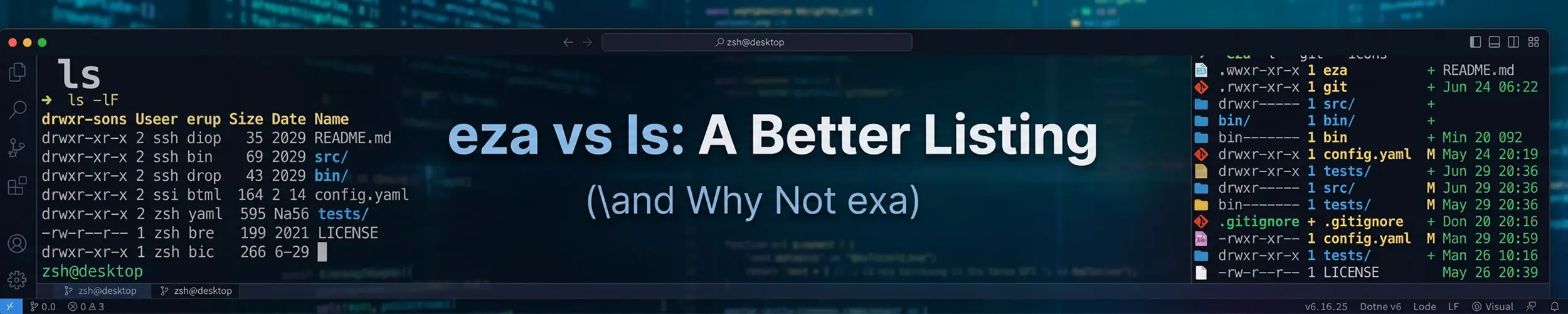
ls is probably the command you type most often, and its defaults have not changed in decades: a plain listing, sorted alphabetically, with dates in a format that is hard to scan and sizes in bytes unless you ask otherwise.
eza is a modern reimplementation with sensible defaults, colour by file type, human-readable sizes, a built-in tree view and, inside a repository, git status in the margin. It is the least essential tool in this section and the most pleasant.
First: it is eza, not exa
Most of the articles you will find recommend exa. Do not install exa. The original project stopped being maintained, and eza is the community fork that took over — same idea, same flags, actively developed. Anything written before about 2024 will point you at the wrong one.
If you already have exa installed, replace it. It still works, but it stopped receiving fixes.
The short verdict
Install eza if you like it, skip it without regret if you do not. Unlike htop or ncdu, this one changes comfort rather than capability — ls was never the bottleneck.
Never put eza in a script. And more importantly: never parse the output of ls either. That is a classic bug, and the fix is not a different listing tool.
The tree view is the genuinely new capability, replacing a separate tree command.
Installing
# Recent Debian, Ubuntu, Fedora and Arch package it directly
sudo apt install eza
sudo dnf install eza
sudo pacman -S eza

# On older releases it may not be packaged yet:
cargo install eza

# macOS
brew install ezaIf apt cannot find it, your release predates its packaging — cargo install eza works anywhere Rust is available, or the project publishes a binary. Unlike fd and bat, there is no renamed-binary trap here: the command is eza everywhere.
What it changes
| ls | eza | |
|---|---|---|
| Colour by file type | With --color | Yes, richer |
| Human-readable sizes | -h | Default in long view |
| Tree view | No, needs tree | --tree |
| Git status per file | No | --git |
Respects .gitignore | No | --git-ignore |
| Icons | No | --icons, needs a patched font |
| Directories first | No | --group-directories-first |
| Installed everywhere | Yes | No |
| POSIX specified | Yes | No |
# Long listing, sensible defaults
eza -l

# Everything, including dotfiles, directories first
eza -la --group-directories-first

# Tree, two levels deep
eza --tree --level=2

# Long listing with git status
eza -l --git

# A project tree, skipping whatever git ignores
eza --tree --git-ignore --level=3

# Sort by modification time, newest last
eza -l --sort=modifiedeza --tree --git-ignore is the one worth the install. A project tree with node_modules, .git and build output automatically excluded is genuinely useful for getting oriented in an unfamiliar repository, and the classic tree command needs a pile of -I exclusions to manage it.
The --git column shows which files are modified, staged or untracked right in the listing, which saves a trip to git status when you are already looking at a directory.
Aliases, and why to be careful
The usual advice is to alias ls to eza. It works, and there is a real argument against it.
# In ~/.bashrc - keep ls as ls
alias ll='eza -l --group-directories-first --git'
alias la='eza -la --group-directories-first'
alias lt='eza --tree --level=2'
alias ltg='eza --tree --git-ignore --level=3'Aliasing ll and la rather than ls itself gets you the benefit without the cost. If you alias ls outright, then every time you use a machine without eza — every server, every container — your fingers produce flags that do not exist, and worse, you gradually stop knowing what real ls output looks like. Keeping ls as ls means the portable skill stays intact.
This is the general shape of the section’s rule, showing up in the smallest tool: learn ls, install eza — and here, deliberately keep them separate.
Where ls is still the right answer
- Every machine that is not yours. The usual reason, and it applies constantly with a command you type this often.
- Scripts — though see the warning below, because the right answer there is usually neither.
- Some specialised output:
ls -Zshows SELinux labels,ls -ishows inode numbers,ls -lnshows numeric UIDs. These come up during real diagnosis — see users, groups and root for why numeric IDs matter. - Muscle memory that must not decay. Knowing
ls -lahwithout thinking is worth protecting.
Do not parse ls output
Worth stating because it is one of the most common shell scripting bugs, and switching to eza does not fix it.
# WRONG - breaks on filenames with spaces or newlines
for f in $(ls *.txt); do
  process "$f"
done

# RIGHT - the shell expands the glob safely
for f in *.txt; do
  [ -e "$f" ] || continue
  process "$f"
done

# RIGHT - for anything recursive
find . -name "*.txt" -print0 | xargs -0 processls is designed for humans to read. Its output format is not a stable interface, and a filename containing a space silently breaks any script that splits it on whitespace. Use a glob for a single directory and find with -print0 for anything deeper. The [ -e "$f" ] || continue line handles the case where the glob matches nothing and the shell passes the pattern through literally.
Quick reference
| You want | Command |
|---|---|
| A readable long listing | eza -l |
| Everything, directories first | eza -la --group-directories-first |
| A project tree | eza --tree --git-ignore --level=3 |
| Git status in the listing | eza -l --git |
| Newest files last | eza -l --sort=modified |
| The portable version | ls -lah |
| Numeric owner IDs | ls -ln |
| SELinux labels | ls -Z |
| Loop over files in a script | for f in *.txt; do ... — never $(ls) |
Related reading
- bat vs cat and less — the same idea, for reading files
- fd vs find — finding files rather than listing them
- File permissions — reading the columns in a long listing
- Users, groups and root — what the owner column means
- Links — the arrows you see in
ls -l - Command line basics — globs, quoting and why the script above breaks