

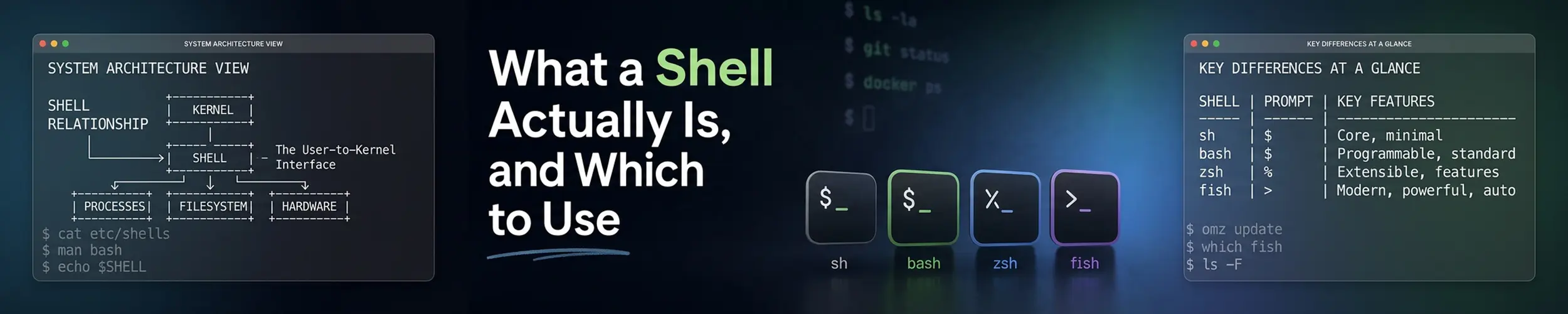
Three things get called “the terminal” and they are different. The terminal emulator is the window. The shell is a program running inside it that reads what you type and decides what to do. The commands are separate programs the shell finds and runs on your behalf.
The distinction sounds academic until something goes wrong. An alias that works in your terminal but not in a script, a PATH that is right when you log in and wrong over SSH, a colleague’s dotfile that does nothing on your machine — all of these are shell behaviour, and none of them make sense without knowing which file runs when.
What happens to a line you type
When you press Enter, the shell does several things in a fixed order before anything runs:
- Expands what you wrote — wildcards become filenames,
$HOMEbecomes a path,$(...)is run and replaced by its output. - Splits the result into words.
- Decides what the first word is — an alias, a function, a builtin, or a program on disk.
- Sets up redirection — pipes and
>are the shell’s work, not the command’s. - Runs it and waits.
Step one explains the single most common source of surprise. The command never sees your wildcard. Type ls *.txt and the shell replaces *.txt with the matching filenames first; ls receives a list and has no idea a wildcard was involved.
That is why find . -name "*.txt" needs quotes — without them the shell expands the pattern before find can use it — and why echo is the best debugging tool you have:
# See exactly what the command will receive
echo rm -rf /var/log/*.gz

# Which kind of thing is this?
type ls
type cd
type my_functiontype answers step three. It tells you whether a name is an alias, a shell builtin, a function or a file — which explains why man cd fails (cd is a builtin, not a program) and why your alias does not apply inside a script.
Which startup file runs when
This is the part that wastes hours, and it comes down to two independent questions the shell asks about itself: is this a login shell? and is this interactive?
| How you got a shell | Login? | Interactive? | Reads |
|---|---|---|---|
| SSH into a server | Yes | Yes | ~/.bash_profile (or ~/.profile) |
| Opening a terminal window | No | Yes | ~/.bashrc |
| Running a script | No | No | Neither |
ssh host 'command' | No | No | Neither |
| A cron job | No | No | Neither |
Three consequences follow, and between them they explain most “but it works when I type it” bugs.
A cron job gets almost none of your environment. No aliases, no functions, and a minimal PATH that often excludes /usr/local/bin. This is why a script that works perfectly by hand fails silently at 3am — see cron, where the fix is to use absolute paths in scheduled jobs.
ssh host 'command' is not the same as logging in and typing it. The first is non-interactive and reads no startup files at all.
Aliases do not exist in scripts, by design. If you want something available everywhere, make it a small script in ~/.local/bin rather than an alias — see the Linux filesystem.
The conventional fix for the login-versus-interactive split is to put everything in ~/.bashrc and have ~/.bash_profile source it:
# ~/.bash_profile
[ -f ~/.bashrc ] && . ~/.bashrcMost distributions ship this already. If your prompt and aliases work in a local terminal but vanish over SSH, that line is missing.
Environment variables and PATH
Variables belong to the shell. export is what passes one down to programs the shell starts — without it, the variable exists for you and is invisible to everything you run.
NAME="value"          # this shell only
export NAME="value"   # this shell and everything it starts

# What is in the environment?
printenv
echo "$PATH"

# Which of these will actually run?
which python3
type -a python3PATH is a colon-separated list of directories searched in order, first match wins. type -a shows every match, which is how you diagnose “I installed a newer version and it still runs the old one”.
# Add a directory, keeping the rest
export PATH="$HOME/.local/bin:$PATH"Keep the :$PATH on the end. Writing export PATH="$HOME/.local/bin" replaces the entire search path, and the next command you type will not be found. It is a memorable five minutes.
A related rule: a child process cannot change its parent’s environment. A script that sets a variable cannot affect the shell that ran it. That is why tools like nvm tell you to source them rather than execute them, and why cd has to be a builtin — a separate program could not change your shell’s directory.
bash, zsh and fish
| bash | zsh | fish | |
|---|---|---|---|
| Installed by default | Almost always | Sometimes | No |
| POSIX compatible | Yes | Yes | No |
| Runs existing scripts | Yes | Yes | Often not |
| Tab completion | Basic | Excellent | Excellent |
| Suggestions as you type | No | With a plugin | Built in |
| Good defaults | No | After configuration | Yes |
| Setup effort | None | Some | None |
bash is the default nearly everywhere and the one to know. Scripts you write in it run on any Linux machine, and its behaviour is what every tutorial assumes. It is not a pleasant interactive shell out of the box, which is why the other two exist.
zsh is mostly bash-compatible with far better completion — it completes command options, git branches and remote paths over SSH. Most bash knowledge transfers directly. The usual complaint is that it needs configuring to be good, which frameworks like oh-my-zsh solve at the cost of slowing your prompt down.
fish is the nicest to use and deliberately not POSIX compatible. Autosuggestions from your history, syntax highlighting as you type, and sensible behaviour with no configuration at all. The cost is real: export VAR=value does not work, && is and, and pasted snippets from the internet frequently fail.
The compromise most fish users settle on: use fish interactively, write scripts with #!/bin/bash. A script’s shebang decides which shell runs it regardless of what you use, so the two do not conflict.
# Try one without committing
fish
exit

# Change your login shell for good
chsh -s /usr/bin/fish

# What are my options?
cat /etc/shellsDo not change root’s shell, and think twice before changing it on a server. Root’s shell is part of your recovery path, and a shell that fails to load leaves you unable to log in. Change it on your own account, on your own machine.
Making bash better without switching
Most of what people leave bash for can be fixed in ten lines of ~/.bashrc:
# A history worth searching
HISTSIZE=50000
HISTFILESIZE=100000
HISTCONTROL=ignoreboth:erasedups
shopt -s histappend

# Correct small typos in cd, and cd by typing a directory name
shopt -s cdspell autocd

# ** matches across directories
shopt -s globstar

# Do not overwrite a file with >
set -o noclobberAdd fzf on top and bash’s weakest feature — searching what you did last week — becomes its strongest. That combination closes most of the gap to zsh for a fraction of the setup.
Things that catch people out
| Symptom | Cause |
|---|---|
| Works by hand, fails in cron | Cron reads no startup files; use absolute paths |
| Alias does not work in a script | Aliases are interactive only |
| Prompt fine locally, plain over SSH | ~/.bash_profile does not source ~/.bashrc |
| “command not found” after editing PATH | You replaced it instead of appending |
| Wrong version of a program runs | PATH order — check type -a |
| Variable set by a script disappears | You executed it; you needed to source it |
| Changes to .bashrc do nothing | Open a new shell, or source ~/.bashrc |
If you want the full picture — all eleven stages between pressing Enter and getting an exit status, including why quoting is settled before any expansion happens, what word splitting does to an unquoted variable, and every exemption set -e quietly makes — that is a separate, much longer article: The Shell, in Depth: From Enter to Exit Status.
Quick reference
| You want | Command |
|---|---|
| Which shell am I in? | echo $0 |
| Alias, builtin or program? | type -a name |
| Preview what a command will get | echo in front of it |
| Reload your config | source ~/.bashrc |
| Add to PATH safely | export PATH="$HOME/.local/bin:$PATH" |
| See the environment | printenv |
| Available shells | cat /etc/shells |
| Change your login shell | chsh -s /usr/bin/zsh |
Related reading
- Command line basics — wildcards, quoting and pipes in practice
- cron — the classic victim of the environment rules above
- The Linux filesystem — where
PATHlooks, and where to put your scripts - fzf — the single best upgrade to bash
- Processes and memory — why a child cannot change its parent
- Terminal editors — for editing all these dotfiles