

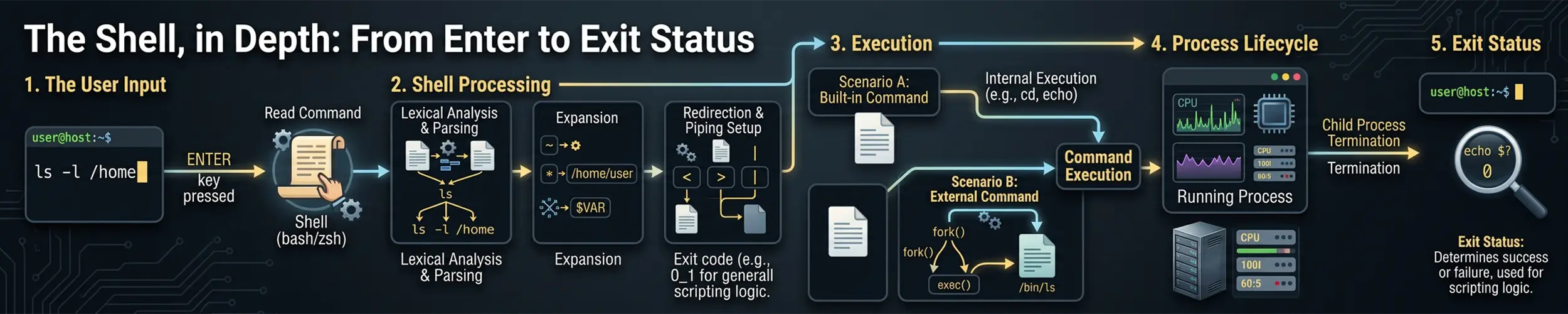
You type a line and press Enter. Before any program runs, the shell rewrites what you typed — several times, in a fixed order, with rules that differ depending on where the quotes are. Then it decides which of four kinds of thing your command is, forks, and hands the result a place in a process group that determines whether it is allowed to touch the terminal at all.
Nearly every shell bug lives in one of those steps, and nearly all of them are invisible because the shell does not show its working. This page follows one command line all the way through, in the order the shell actually processes it, with the command that shows you what happened at each stage.
What a shell actually is covers startup files and the interactive side. This is the level below it: not which file runs when, but what the shell does to your text between reading it and executing it.
1. Which shell is even running this
Before any of that, one question that costs people entire afternoons: which shell is executing the script, and which files did it read first?
#!/bin/sh does not mean one thing. On Debian and Ubuntu, /bin/sh is dash — a small, fast, strictly POSIX shell. On Fedora, RHEL 10, Arch and openSUSE it is bash running in POSIX mode, which is a very different creature: it still understands arrays, [[ ]], local, += and process substitution. So a script with a #!/bin/sh line and a bashism in it works perfectly on Fedora and fails on Ubuntu, and the author never finds out.
Arch’s decision here was explicit rather than accidental — a request to point /bin/sh at dash was closed as “won’t implement”, on the grounds that anything requiring bash and not saying so is simply a bug. Debian went the other way for boot speed, and has stayed there. There is a tool for the resulting mess, and it is worth putting in CI:
# what is /bin/sh here?
readlink -f /bin/sh

# find bashisms in a #!/bin/sh script (Debian's devscripts package)
checkbashisms deploy.sh

# and the general answer
shellcheck -s sh deploy.shThe startup files are the other half of this question, and there is one rule almost nobody knows. For an interactive login shell, bash reads /etc/profile, then the first one that exists of ~/.bash_profile, ~/.bash_login and ~/.profile — first match wins, not all three. For an interactive non-login shell it reads ~/.bashrc. For a non-interactive shell it reads neither, and consults BASH_ENV instead.
The exception is the one that breaks things. Bash tries to detect when its standard input is a network connection — as when run by sshd — and if it decides that is happening, it reads ~/.bashrc even though the shell is non-interactive. That is why ssh host 'command' sources your ~/.bashrc, and why a ~/.bashrc that prints a banner or a fortune quietly breaks scp and rsync to that host: the greeting arrives in the middle of the protocol stream. If your distribution’s default ~/.bashrc begins with a test for interactivity and an early return, that is what it is defending against. Do not put anything above that line.
2. Parsing, and why quoting is decided first
The shell reads the line and splits it into words and operators. Crucially, this happens before any expansion, so the quoting of the text you typed is fixed at this point and cannot be changed by anything that expands later.
This is the source of the most confusing single behaviour in shell programming: quotes that arrive inside a variable are not quotes. They are ordinary characters, because parsing has already finished.
args='--message "hello world"'
printf '[%s]\n' $args

[--message]
["hello]
[world"]Three arguments, two of which contain literal quote marks. This is not a bug and no amount of extra quoting fixes it. The construct that exists for this job is an array, which stores the word boundaries themselves rather than trying to reconstruct them later:
args=(--message "hello world")
printf '[%s]\n' "${args[@]}"

[--message]
[hello world]If you find yourself reaching for eval to make the first version work, the answer is almost always an array instead. Arrays are not POSIX, so a #!/bin/sh script cannot have them — which is one of the better reasons to write #!/bin/bash and mean it.
3. The expansions, in the order that is actually specified
POSIX — currently Issue 8, IEEE Std 1003.1-2024, the first new edition since 2008 — defines four numbered steps. Bash adds brace expansion in front of them.
| Stage | What it does | Can it change the number of words? |
|---|---|---|
| Brace expansion | {a,b} and {1..9}. Bash only — not in POSIX at all. | Yes |
| Tilde expansion | ~ and ~user → home directories. | No |
| Parameter expansion | $var, ${var:-default}, ${var#prefix}. | No |
| Command substitution | $(...), and the older backticks. | No |
| Arithmetic expansion | $((...)). | No |
| Word splitting | Splits on IFS. Only applies to unquoted results of the four above. | Yes |
| Pathname expansion | Globs matched against the filesystem. Disabled by set -f. | Yes |
| Quote removal | The quote characters are deleted. Always last. | No |
Two things in that table do most of the work. The first is the last column: only three of these can change how many arguments your command receives, and one of them is bash-specific. Everything else turns one word into one word, which is why a variable containing a space is safe in every context except an unquoted one.
The second is the phrasing POSIX uses for the middle four. They are not done “in that order” as separate passes — the standard says they are performed “beginning to end”, meaning one left-to-right sweep across the word. So a command substitution can produce text containing a $, and that $ will not be expanded as a parameter, because the sweep has already passed. This is the mechanism that makes data from a command substitution safe from a second round of interpretation, and it is a much better guarantee than most people realise they have. (Incidentally, bash’s own manual lists arithmetic expansion before command substitution and POSIX lists them the other way round; because it is one left-to-right pass, this makes no difference and neither is wrong.)
Bash 5.3, released in July 2025, added a genuinely new member of this family and it is worth knowing about because it removes a cost that has been there since the beginning:
# classic: forks a subshell, so side effects are lost
count=$( grep -c ERROR log; total=99 )
echo "$total"        # empty - the assignment happened in the child

# bash 5.3: no fork, no pipe, side effects persist
count=${ grep -c ERROR log; total=99; }
echo "$total"        # 99

# and the variant that returns REPLY instead of stdout
result=${| read -r line < /etc/hostname; REPLY=$line; }${ command; } runs the command in the current execution environment and captures its output; ${| command; } captures the value of REPLY instead and leaves standard output alone. Side effects persist, which is the entire point. Before using it, check what you are shipping to: RHEL 10 ships bash 5.2, where this is a syntax error.
4. Word splitting, and the rules of IFS
Stage four is where most shell bugs are born. The unquoted results of stage three are split into fields on the characters in IFS, whose default value is space, tab and newline.
The splitting rules are not symmetrical, and the asymmetry is the part worth memorising. Whitespace in IFS is greedy and forgiving: runs of it collapse, and leading or trailing whitespace is ignored entirely. A non-whitespace character in IFS is strict: each one delimits a field, so two of them in a row produce an empty field between them. POSIX puts the whitespace case unusually plainly — a field that is wholly empty or entirely IFS whitespace yields zero fields, not one empty one.
line='  a   b  '
printf '[%s]' $line; echo        # [a][b]      - whitespace collapses

IFS=:
line='a::b'
printf '[%s]' $line; echo        # [a][][b]    - colons do not

IFS=
line='a   b'
printf '[%s]' $line; echo # [a b] - empty IFS: no splitting at allNote that last one: setting IFS to empty disables word splitting completely, while unsetting it restores the default. They are different states, and code that does unset IFS expecting “no splitting” gets the opposite of what it wanted.
The four ways to pass “all the arguments”, and only one of them is right. This is the single highest-value thing in the article for anyone writing scripts other people run.
| Written as | What actually happens |
|---|---|
$@ | Each argument, then word-split and glob-expanded. An argument containing a space becomes two. Effectively never what you want. |
$* | Joined with a space, then split again. Pointless. |
"$*" | One single word, joined by the first character of IFS. Occasionally useful for building a message. |
"$@" | Each argument as exactly one word, whatever it contains. This is the one. |
"$@" is special-cased in the standard precisely because nothing else can do this: it is the only construct that expands to a variable number of words while preserving the boundaries between them. The same applies to "${array[@]}".
One footnote on "$*" that catches people: it joins with the first character of IFS, but if IFS is unset it joins with a space, and if IFS is null it joins with nothing at all. Three states, three behaviours.
5. Globbing, and the thing it does not do
Pathname expansion matches the remaining words against the filesystem. Two properties are worth having straight.
Its results are never word-split. Splitting is stage four; globbing is stage five; there is no second splitting pass. So rm * in a directory containing my file.txt correctly passes one argument, not two — the shell is not being careless there, and the danger of globs is entirely elsewhere.
An unmatched glob is passed through literally. If nothing matches *.log, your program receives the four characters *.log as an argument. This is why a loop over a directory with no matching files runs exactly once, with a filename that does not exist — a bug that only appears on empty directories, which is to say in production and never in testing.
# the fix, in bash
shopt -s nullglob        # unmatched globs expand to nothing
shopt -s failglob        # or: unmatched globs are an error
shopt -s globstar        # ** matches across directories
shopt -s dotglob         # * also matches dotfiles

# see everything that is set
shopt
set -oshopt and set -o are two separate namespaces of options and people routinely look in the wrong one. As a rough rule, set -o holds the POSIX-ish behavioural switches (errexit, nounset, pipefail, noglob) and shopt holds the bash extensions.
6. Finding the command: four kinds of thing
With the words settled and the redirections set up, the shell has to work out what the first word means. There are four answers, and they are tried in order.
- An alias — substituted during parsing, and only in interactive shells. This is why aliases do not work in scripts, and why they cannot take arguments.
- A shell function — runs in the current shell, so it can change your variables and your directory.
- A builtin —
cd,read,echo,[. Also runs in the current shell, which is whycdcould never be an external program. - A file on
PATH— found by searching, then cached in a hash table so the search does not repeat.
# everything this name could mean, in precedence order
type -a echo

echo is a shell builtin
echo is /usr/bin/echo
echo is /bin/echo

# just the path that would run
command -v python3

# bypass a function or alias of the same name
command ls

# force the builtin rather than a function that shadows it
builtin cd /tmp

# the cache is why a newly installed program is "not found"
hash -rtype -a is the command to reach for whenever something behaves differently from what you expect, because it exposes shadowing immediately. A function called ls that adds colour, a builtin echo that handles -e differently from /bin/echo, a PATH that finds an old copy first — all three look identical from the outside and all three are one command away from being obvious.
That last one is the classic cron failure. Cron gives a job a minimal PATH, so a script that works in your shell fails with “command not found” for something you can plainly see is installed. The fix is not to fight it: use absolute paths, or set PATH explicitly at the top of the script, and remember that cron also gives you no ~/.bashrc, no aliases, and often no HOME pointing where you expect.
7. Fork, exec, and where the process lands
For an external command, the shell forks and the child execs your program — the sequence what actually happens when you run a program covers from the other side. The shell-specific part is what the child is placed into.
Three nested groupings matter, and they are kernel concepts rather than shell ones:
- A process group is a set of processes sharing a group ID — what the shell calls a job. A pipeline is one process group, which is how Ctrl+C kills all of it at once.
- A session is a set of process groups, normally one per login or per terminal window.
- The controlling terminal belongs to the session, and exactly one process group in it is the foreground group at any moment.
That last fact is what job control is. Running something in the background does not change its ability to compute; it changes which process group the terminal considers to be in front. And the terminal enforces that:
- A background process that tries to read from the terminal is sent
SIGTTINand stopped. This is why a backgrounded command that wants a password just freezes, showingStopped (tty input)instead of a prompt. - A background process that writes is only stopped — with
SIGTTOU— if the terminal’sTOSTOPflag is set, and on Linux it is off by default. That is why background output interleaves messily into your session instead of politely stopping.stty tostopchanges it, if you want the other behaviour.
ps -o pid,ppid,pgid,sid,tpgid,stat,comm

  PID  PPID  PGID   SID TPGID STAT COMMAND
 3812  3810  3812  3812  4109 Ss   bash
 4109  3812  4109  3812  4109 R+   ps
4102 3812 4102 3812 4109 S long-jobRead that output carefully once and job control stops being mysterious. TPGID is the process group the terminal currently considers foreground — note that every row agrees on it, because it is a property of the terminal, not of the process. In STAT, s means session leader and + means “in the foreground process group”. Here long-job has neither: it is running in the background, and if it tries to read from the terminal it will stop dead.
8. Hangup, and the four things that are not the same
When a terminal goes away — the SSH connection drops, the window closes — the kernel sends SIGHUP to the controlling process, which is normally your shell, and the default action is to die. Four mechanisms exist to survive this and they work at four completely different levels, which is why advice about them is so often contradictory.
| Mechanism | What it actually does |
|---|---|
nohup cmd | Sets SIGHUP to ignored, and redirects output to nohup.out if stdout is a terminal. The process stays in the session. |
disown %1 | Shell bookkeeping only. Removes the job from the shell’s table so the shell will not signal it. The kernel-level session is untouched. |
setsid cmd | Puts the command in a new session with no controlling terminal, so the hangup has nowhere to arrive. The strongest of the four. |
shopt -s huponexit | The opposite: makes an interactive login shell deliberately SIGHUP its jobs on exit. Off by default. |
For anything you actually care about, none of these is the right answer. tmux or a systemd unit gives you a process that survives, can be reattached, and has somewhere for its output to go. nohup is for the moment you realise, ten minutes in, that you should have used one.
9. Exit status, and what set -e will not save you from
The last stage is a number. Zero is success; anything else is not. set -e is supposed to stop the script on a non-zero status, and the reason it has such a bad reputation is that its list of exemptions is long, specific, and almost never read.
set -e does not apply to a command that is:
- in the condition of an
if, or afterwhileoruntil; - anywhere in a
&&or||list except after the final one — note the exception to the exception, which most write-ups get wrong; - anywhere in a pipeline but the last command;
- negated with
!.
Which means this script, with set -e at the top, prints “done” and exits zero:
set -e
false | true                 # pipeline: only the last status counts
count=$(false)               # the assignment's status is what matters
if grep -q x missing; then :; fi   # condition context
echo doneThe pipeline case is what set -o pipefail is for, and it was standardised in POSIX Issue 8 after decades as a bash and ksh extension. The assignment case has no switch — you have to know it. The habit worth building is the three-line preamble, and then still checking the things it cannot see:
set -euo pipefail
IFS=$'\n\t'          # optional, and opinionated: no splitting on spaces
set -u turns an unset variable into an error, which catches the typo that would otherwise silently expand to nothing and turn rm -rf "$prefix/data" into something considerably worse.
10. A worked diagnosis
A nightly backup script has run successfully every night for a year. Someone tries to restore a file and discovers that everything with a space in its name is missing from the archives — all of them, going back months. The script exits zero every time and the log says nothing.
#!/bin/bash
set -e

find /srv/data -mtime -1 -type f | while read file; do
    cp $file "$STAGING/"
done
tar czf "$DEST/backup-$(date +%F).tar.gz" -C "$STAGING" .Start with the hinge. Do not read the script; make the shell show you what it actually ran.
bash -x ./backup.sh 2>&1 | head -20

+ cp /srv/data/report.pdf /staging/
+ cp /srv/data/quarterly /report.pdf /staging/
cp: cannot stat '/srv/data/quarterly': No such file or directoryThere it is, on line two. The command the shell ran is not the command that was written: one filename became two arguments. That is stage four, word splitting, acting on an unquoted $file — and it means the whole first half of the article applies and the second half does not.
But why did nobody notice? Three separate things had to fail silently, and each is on this page.
One. cp failed and returned non-zero, but set -e did not fire, because the while loop is the last command of a pipeline and errexit does not apply inside it — exemption three in the box above.
Two. The pipeline’s own status is the status of while, which succeeded. Without pipefail, nothing upstream can fail the script either.
Three. read without -r also mangles backslashes, and read strips leading and trailing IFS whitespace from each line — so filenames with leading spaces were being corrupted in a second, different way that would have survived fixing only the first bug.
The fix addresses the stage, not the symptom. Stop parsing filenames as text at all:
#!/bin/bash
set -euo pipefail

# -print0 and -d '' make the newline stop being a delimiter,
# which is the only fully correct way to handle filenames
while IFS= read -r -d '' file; do
    cp -- "$file" "$STAGING/"
done < <(find /srv/data -mtime -1 -type f -print0)Four changes, each closing one stage. IFS= before read stops the whitespace trimming. -r stops backslash mangling. -d '' paired with -print0 makes the null byte the separator, which is the only character that cannot appear in a filename. And process substitution instead of a pipe means the loop runs in the current shell, so set -e applies to it and any variable it sets survives the loop — which is the same reason the original could not report failure. The -- before "$file" handles the filename that begins with a hyphen.
Notice what the method bought. Had bash -x shown the command exactly as written, every one of those stage-four fixes would have been wasted effort, and the next question would have been stage eight — type -a cp, and whether cron’s PATH was finding a different one.
11. Symptom, stage, command
The numbers below are the eleven stages from the box at the top of this page, not the section numbers.
| What you see | Stage and likely cause | What to run |
|---|---|---|
| Quotes inside a variable are not treated as quotes | 1 — parsing finished before the variable existed | Use an array and "${arr[@]}", never eval |
| A filename with a space becomes two arguments | 4 — unquoted expansion was word-split | bash -x; quote it |
| Arguments with spaces break when passed on | 4 — $@ instead of "$@" | Always "$@" |
| A loop over files runs once with a nonexistent name | 5 — an unmatched glob was passed through literally | shopt -s nullglob |
| A glob does not match dotfiles or cross directories | 5 — default globbing behaviour | shopt -s dotglob globstar |
| Output goes to the terminal despite a redirection | 7 — stderr is not stdout; order matters | cmd >file 2>&1, not 2>&1 >file |
| An alias works interactively and not in a script | 8 — aliases are expanded only in interactive shells | Use a function |
| The wrong version of a program runs | 8 — shadowed by a function, builtin or earlier PATH entry | type -a name |
| “command not found” for something clearly installed | 8 — cron’s minimal PATH, or a stale hash | hash -r; set PATH in the script |
| A newly installed program is still “not found” | 8 — the lookup is cached | hash -r |
cd in a script does not affect the caller | 9 — the script is a child process | source it instead of executing it |
A variable set in a while loop is empty afterwards | 9 — the loop ran in a subshell because of the pipe | Process substitution: done < <(cmd) |
A backgrounded job freezes as Stopped (tty input) | 10 — SIGTTIN; it tried to read the terminal | fg; or give it input from a file |
| Background output scribbles over your prompt | 10 — TOSTOP is off by default on Linux | stty tostop, or redirect the job’s output |
| A long job dies when the connection drops | 10 — SIGHUP to the controlling process | tmux, a systemd unit, or setsid |
| A script continues after an obvious failure | 11 — an errexit exemption | Add set -o pipefail; check statuses explicitly |
| A pipeline succeeds when its first command failed | 11 — only the last status counts | set -o pipefail, or ${PIPESTATUS[@]} |
| An empty variable produces a catastrophic path | 11 — nothing checked that it was set | set -u, or ${var:?message} |
A #!/bin/sh script works on Fedora, fails on Ubuntu | — dash, not bash | checkbashisms; shellcheck -s sh |
scp or rsync to a host fails mysteriously | — ~/.bashrc prints something over the connection | Keep all output below the interactivity check |
12. Which shell, in 2026
Everything above is bash unless stated, because bash is still the default login shell on Debian, Ubuntu, Fedora, RHEL, Arch and openSUSE. Among distributions you are likely to meet, Kali is the notable one that switched its default to zsh, back in 2020.
The state of the others, since both moved recently enough to catch out anyone working from memory:
- zsh 5.9.1 arrived in May 2026 — after a four-year gap since 5.9. Mostly bug fixes. Note that the project’s own News page is stale and still advertises 5.9; check the announce list rather than the website.
- fish rewrote itself in Rust for 4.0 in February 2025 and has moved fast since — 4.8.1 as of July 2026. The rewrite’s real user-facing win is not speed, which the project says is roughly unchanged, but that fish now ships as a single static binary you can drop onto any Linux machine without root. Version 4.3.0 replaced universal variables with globals, which is a genuine migration hazard for an old
config.fish. Fish remains deliberately non-POSIX, and says so in its own documentation.
One broader change is worth flagging because it affects scripts rather than shells. Ubuntu made the Rust uutils reimplementation of coreutils its default in 25.10. In 26.04 LTS the migration is deliberately incomplete — cp, mv and rm are still GNU, held back over unresolved time-of-check-to-time-of-use issues — with full migration targeted at 26.10. The practical consequence for anyone writing portable scripts is new: it is no longer enough to ask which shell and which distribution. You may now have to ask which implementation of ls.
13. The shape of the whole thing
The shell is a text transformer with a process manager bolted to the end of it, and almost all of its difficulty comes from the fact that the transformation is invisible. Every stage is simple on its own. The trouble is that six of them run before your program sees anything, in a fixed order, and the shell reports none of it — so a quoting mistake does not produce an error, it produces a different, valid command that runs successfully and does the wrong thing.
Which is why the diagnosis always starts the same way. Run it under set -x and read what the shell actually executed. If that line differs from what you wrote, the answer is in stages 2 to 6 and it is nearly always quoting. If it matches exactly, the answer is in stages 7 to 11 — the wrong program, the wrong process group, or a status nobody checked. One command splits this page in half.
Next, if this was useful: what a terminal actually is goes further into ptys and job control, and the other long ones follow the same method for different subsystems — from power-on to a login prompt, permissions and privilege, the life of a write and the life of a packet.