

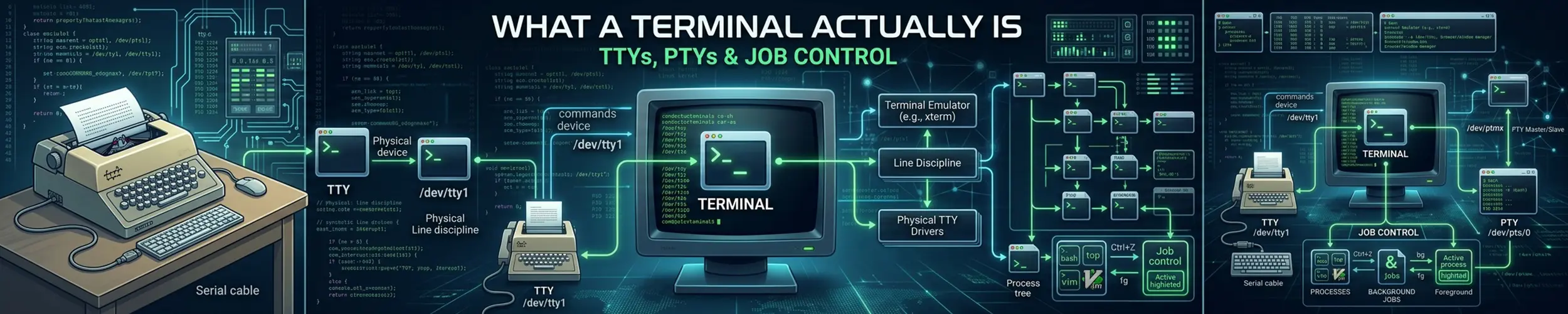
There are three separate things people call “the terminal”: the window on your screen, the kernel device that window is attached to, and the shell running inside it. They are genuinely different, and most confusing terminal behaviour — Ctrl+C not working, output appearing in the wrong place, a long job dying when your laptop sleeps — comes from not knowing which one is responsible.
A short history that explains the names
TTY is short for teletypewriter — a physical machine that printed onto paper and sent your keystrokes down a wire. Linux still models terminals exactly that way, which is why the abstraction has features that make no sense for a window: line editing, flow control, a concept of “who is in front of the keyboard”.
Today there are two kinds, and telling them apart matters:
| Kind | Looks like | Where it comes from |
|---|---|---|
| Virtual console | /dev/tty1 | The text screen you reach with Ctrl+Alt+F2, before any graphics |
| Pseudo-terminal (pty) | /dev/pts/3 | Created in software — by your terminal emulator, by sshd, by tmux |
A pty is a pair: one end is handed to the program, which sees an ordinary terminal, and the other end belongs to whatever is pretending to be the hardware. Your terminal emulator draws characters and forwards keystrokes; sshd does the same over a network. Neither program knows or cares which is on the other side, which is why everything composes.
The diagnostic: ask what you are attached to
tty                       # which terminal this shell is on
who                       # everyone logged in, and their terminal
ls -l /proc/$$/fd/0       # what stdin actually is
ps -o pid,tty,stat,cmd -t pts/3     # every process on that terminal
stty -a # every terminal setting, including the control keysIf tty answers not a tty, you are in a pipeline, a cron job or a script — and that single fact explains a whole class of behaviour. Programs check this: ls drops its colours, git stops paging, progress bars vanish, and anything that wanted to prompt you fails instead. Reproducing a problem that only happens in cron usually starts here.
The STAT column in that ps output is worth reading: a + means the process is in the foreground group of its terminal, which is precisely the set of processes your Ctrl+C will reach.
The line discipline, which does more than you think
Between the keyboard and the program sits a piece of kernel code called the line discipline. In its default mode it buffers a whole line, lets you edit it with backspace, echoes what you typed, and turns certain keystrokes into signals rather than characters.
| Key | Becomes | Effect |
|---|---|---|
Ctrl+C | SIGINT | Asks the foreground processes to stop |
Ctrl+\ | SIGQUIT | Harsher, and writes a core dump |
Ctrl+Z | SIGTSTP | Suspends them |
Ctrl+D | Not a signal | End of input — which is why it exits a shell |
Ctrl+S / Ctrl+Q | Not a signal | Stop and start output — the fake freeze |
Ctrl+U, Ctrl+W | Not a signal | Line editing, handled here before any program sees it |
Two useful consequences. Ctrl+S is not a hang — it is flow control, a survival from real teletypes, and Ctrl+Q resumes. And Ctrl+C is a request: a program is entitled to catch SIGINT and ignore it, and one stuck in uninterruptible I/O will not even see it. That is when you leave the terminal alone and kill it from another one.
Programs that need every keystroke immediately — vim, less, anything full-screen — switch the line discipline into raw mode and handle editing themselves. When one of those crashes without restoring the settings, your terminal is left echoing nothing and ignoring Enter. reset or stty sane fixes it, even though you cannot see what you are typing.
Job control
A terminal has exactly one foreground process group — the one allowed to read from the keyboard and receive its signals. Everything else is in the background. Job control is the shell moving processes between those states.
long-running-thing            # runs in the foreground
^Z                            # suspended, and stopped
jobs                          # list them
bg %1                         # resume it, in the background
fg %1                         # bring it back
kill %1                       # signal a job rather than a PID
long-thing & # start in the background immediatelyA background process that tries to read from the terminal is stopped with SIGTTIN, because two things reading your keystrokes would be nonsense. That is the explanation for a background job that mysteriously halts and shows Stopped (tty input) — it wants to ask you something. fg it and answer.
Background output, by contrast, is usually allowed, which is why a background job can scribble over the prompt you are typing at.
The misreading: closing the window does not just close a window
When a terminal disappears, the kernel sends SIGHUP to everything attached to it. HUP is short for hang up — the modem dropped. That is why a four-hour job dies when your SSH connection drops, when your laptop sleeps, or when you close the window: not because the job failed, but because its terminal went away and the default action for SIGHUP is to die. & does not protect against this. Backgrounding a job keeps it off the keyboard; it does not detach it from the terminal.
There are three real answers, in increasing order of how much you will like them:
nohup long-thing &              # ignore SIGHUP; output goes to nohup.out
long-thing & disown             # started already? detach it from the shell
systemd-run --user --scope long-thing   # hand it to systemd instead
tmux new -s work                # the one you should actually use
nohup and disown keep the process alive but you cannot get back to it — no output, no interaction, no way to answer a prompt. tmux solves the problem properly: it creates its own pty, so the job’s terminal is tmux, and tmux does not go away when your connection does. Reattach and the session is exactly where you left it.
The rule worth adopting: anything longer than a coffee break starts inside tmux. Not because your connection is unreliable, but because one day it will be.
Why the screen is a mess sometimes
Terminals move the cursor and set colours through escape sequences — ordinary bytes in the output stream beginning with an escape character. Which sequences work is described by $TERM and the terminfo database.
echo $TERM                        # xterm-256color, screen-256color, ...
infocmp | head                    # what this terminal claims it can do
reset                             # put everything back after a mess
stty sane                         # the same, quicker
tput cols; tput lines # its size right nowTwo familiar symptoms follow from this. cating a binary file fills the screen with rubbish and can leave the terminal in a strange character set — those bytes were interpreted as commands. And SSHing into an old server with a modern $TERM it has never heard of produces garbled full-screen programs; TERM=xterm ssh host is the workaround.
A resized window notifies programs with SIGWINCH. Programs that ignore it — or that are running under a tmux session you resized while detached — keep drawing at the old size, which is the usual cause of text wrapping in the wrong place.
Symptoms and causes
| What you see | What it is |
|---|---|
| Terminal frozen, keys do nothing | Ctrl+S. Press Ctrl+Q |
| Typing shows nothing | Echo left off by a crashed program — type reset blind |
| Job dies when the connection drops | SIGHUP. Use tmux |
| Background job says “Stopped (tty input)” | It wants to read; fg it |
| Colours and progress bars missing | Output is not a terminal — a pipe or a cron job |
| Screen garbled after viewing a file | Binary bytes read as escape sequences |
| Full-screen programs draw wrongly on a remote host | $TERM unknown there |
| Ctrl+C ignored | The program traps it, or is in uninterruptible I/O |
Related
- What a Shell Actually Is — the program running inside the terminal, and which startup file it reads
- tmux vs screen — the practical answer to everything in the SIGHUP section
- The Life of an SSH Connection — the long one on the connection that hands you the pty, including why
sshcan refuse to exit while a background job still holds the session’s output, and whynohupon its own does not fix that when there is no terminal for it to redirect - Processes and Memory — process groups, signals and what
psis showing you - Shell History — readline, which is the line editing the shell does for itself