

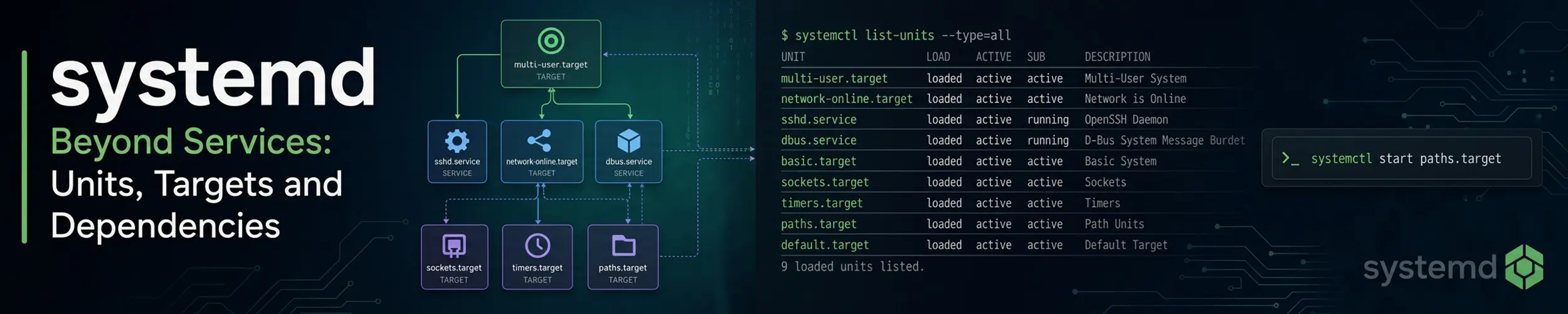
Most people meet systemd through systemctl start and never go further. Underneath, it is a dependency-driven manager of units, and a service is only one kind. Once the other kinds are visible, a set of otherwise baffling behaviours — a bad fstab dropping you into emergency mode, a service that says it is inactive while clearly answering requests, a script that works by hand but fails at boot — all become the same small idea.
For the day-to-day commands, see systemctl. This page is the model behind them.
Everything is a unit
| Type | What it manages |
|---|---|
.service | A process. The familiar one. |
.socket | A port or socket, held open so a service can be started on first connection. |
.target | Nothing at all — a named grouping point other units attach to. |
.timer | A schedule that activates another unit. See systemd Timers. |
.mount / .automount | A filesystem, mounted at boot or on first access. |
.path | Watches a file or directory and activates something when it changes. |
.device | A kernel device, so units can depend on hardware appearing. |
.slice / .scope | Groups for resource control — the cgroup tree, essentially. |
systemctl list-units --type=socket
systemctl list-units --type=mount
systemctl list-unit-files            # everything available, and whether enabled
systemctl --failed # start here when something is wrongWhere units live, and who wins
Three directories, in increasing order of authority: /usr/lib/systemd/system/ belongs to packages, /run/systemd/system/ is runtime-generated, and /etc/systemd/system/ is yours and overrides both.
Never edit a file under /usr/lib. The next package update overwrites it. Use a drop-in instead — a fragment in /etc/systemd/system/<unit>.d/override.conf that is merged over the vendor file, so your change survives upgrades and stays legible as a change.
systemctl cat nginx            # the effective unit, drop-ins and all
sudo systemctl edit nginx      # create or edit a drop-in
sudo systemctl edit --full nginx   # copy the whole unit into /etc and edit that
systemd-delta                  # every override on the system
sudo systemctl daemon-reload # required after any manual file changeOne trap in drop-ins: most directives merge, but list-valued ones like ExecStart and Environment append. To replace an ExecStart you must first clear it with an empty assignment:
[Service]
ExecStart=
ExecStart=/usr/local/bin/myapp --new-flagsThe misreading: needing something is not waiting for it
Requires= and After= are independent, and you almost always need both. Requires=postgresql.service says pull it in; it says nothing about order, so systemd starts both at once and your application fails connecting to a database that is still initialising. After= is what makes it wait. Requiring without ordering is the single most common systemd mistake.
| Directive | Means |
|---|---|
Wants= | Start it too, but carry on if it fails. The usual choice. |
Requires= | Start it too, and fail if it fails. |
BindsTo= | Like Requires, and stop when it stops — for units tied to a device. |
PartOf= | Stop and restart with the named unit, but do not start with it. |
Conflicts= | Stop the other unit when this one starts. |
After= / Before= | Ordering only. No effect on whether anything gets started. |
The same distinction explains the network. network.target means “the network stack is being brought up”, not “you have an address”. A service that must reach the internet at start needs After=network-online.target and Wants=network-online.target — and that target only means anything if the corresponding wait-online service is enabled. Even then it does not mean “has an address”: networkd’s wait-online is satisfied by a link-local address, NetworkManager’s by a profile that has conclusively failed, and on Ubuntu with netplan 1.0.1 or later a YAML that names an interface the machine does not have makes wait-online skip, so the target is reached with no network behind it. This is behind most “works when I start it by hand, fails at boot” reports; The Life of a Network Interface has the three definitions and the measurements.
Targets: what replaced runlevels
A target does nothing itself. It is a synchronisation point: units declare WantedBy=multi-user.target, and reaching that target means everything attached to it has been pulled in. That is all systemctl enable does — create a symlink into the target’s .wants directory.
systemctl get-default                          # graphical or multi-user
sudo systemctl set-default multi-user.target   # boot a desktop machine to console
systemctl list-dependencies multi-user.target  # the whole tree
sudo systemctl isolate rescue.target # switch now, minimal servicesThe ones worth knowing: multi-user.target (full system, no GUI), graphical.target, rescue.target (single user, filesystems mounted) and emergency.target (root filesystem read-only, almost nothing running) — which is where a broken fstab lands you.
Mount units, and why fstab can stop the boot
systemd does not read /etc/fstab at mount time. At boot a generator translates every line into a mount unit, which then participates in the dependency graph like everything else. So an entry for a disk that is missing becomes a failed unit, local-fs.target is not reached, and the boot stops — correct behaviour, and a nasty surprise on a remote server.
Two options prevent it: nofail lets the boot continue without the filesystem, and x-systemd.automount mounts it on first access instead of at boot — the right answer for network shares. x-systemd.device-timeout=10 stops a missing device holding the boot for a minute and a half.
systemctl list-units --type=mount
systemd-analyze verify /etc/fstab      # check before rebooting
systemctl status srv-data.mount # units are named after the mount pointSocket activation
systemd can open the listening socket itself and start the service only when a connection arrives, handing over the already-open socket. Nothing is lost in between — connections queue in the kernel while the service starts.
This buys three things: services that idle at zero memory until used, a boot that does not have to order dependent services carefully because the socket exists from the start, and restarts that drop no connections.
It also produces a confusing status display. Recent Ubuntu releases ship SSH socket-activated, so systemctl status ssh reports inactive on a machine you are currently logged into over SSH — because the listener is ssh.socket and the service starts per connection. Nothing is wrong. Check the socket unit, and remember that changing the port now means editing the socket, not sshd_config.
systemctl status ssh.socket
systemctl list-socketsThe diagnostics
systemctl --failed                       # what has run and exited non-zero
systemctl list-dependencies myapp        # what it pulls in
systemctl list-dependencies --before myapp   # what it delays
systemctl show myapp | grep -i restart   # every effective setting, not just the file
journalctl -u myapp -b --no-pager        # its logs this boot
systemd-analyze                          # how long the boot took, split by phase
systemd-analyze blame                    # slowest units
systemd-analyze critical-chain myapp     # what actually delayed it
systemd-analyze verify myapp.service     # syntax only: read the output, not the exit code
blame is the one people reach for and the one that misleads: it lists the slowest units regardless of whether anything waited on them. critical-chain shows the path that actually determined the boot time, which is usually a much shorter list. verify misleads in a different way: it checks that a unit file parses, and does not check that the units it references exist. A timer whose Unit= names a service that is not there verifies silently and exits 0, and so does a misspelt directive. Read its output; do not test its exit status, and do not treat a clean run as evidence that anything it mentions exists. It also prints errors belonging to other units that happen to be enabled on the machine, so its output is not scoped to the file you named.
Slices, and free sandboxing
Every service runs in a cgroup, arranged in slices — which is how systemd-cgtop can show you resource use per service, and how MemoryMax= or CPUQuota= in a unit file become real limits with no other tooling.
The same unit file is also the cheapest hardening you will ever apply. Four lines in a drop-in, no code changes:
[Service]
NoNewPrivileges=true      # cannot gain privileges, even via setuid binaries
PrivateTmp=true           # its own /tmp, invisible to everything else
ProtectSystem=strict      # the whole filesystem read-only except what you allow
ProtectHome=true
ReadWritePaths=/var/lib/myappsystemd-analyze security myapp.service scores a unit and lists what else is available. The score is a blunt instrument — do not chase it — but the list is a genuinely useful menu, and see Securing a New Server for where it fits.
Related
- systemctl — the commands, day to day
- systemd Timers — scheduling as units, and when cron is still right
- The Life of a Network Interface — the long one on what
network-online.targetactually waits for: three definitions, none of them “has an address” - How Linux Boots — what happens before PID 1 exists
- Monitoring a Server — turning
OnFailure=into alerts that reach you