

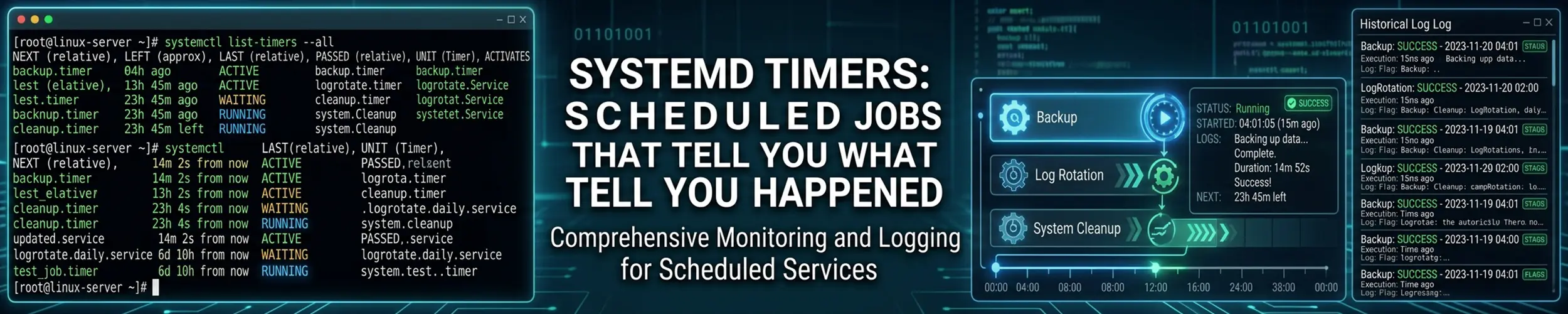
cron runs a command on a schedule and that is all it does. It has no idea whether the command worked, it emails output into a void nobody reads, and a job that was due while the machine was off simply does not happen.
A systemd timer does the same job with the rest of systemd behind it: output in the journal, a recorded exit status, dependencies on other units, resource limits, and the ability to catch up on a missed run.
The cost is that it takes two files instead of one line.
Timer against cron
| cron | systemd timer | |
|---|---|---|
| To set one up | One line | Two files |
| Where output goes | Email, usually nowhere | The journal |
| Did it succeed? | You cannot tell | systemctl status, for a non-zero exit |
| Missed while powered off | Never runs | Persistent=true runs it once — not once per run missed |
| Wait for the network first | No | Yes, via dependencies |
| Prevent overlapping runs | Write a lock yourself | Built in, by silently replacing your interval with the job’s duration |
| Randomised start times | Awkward | RandomizedDelaySec |
| Resource limits | No | Yes |
| Available everywhere | Yes, including containers | Only with systemd |
The rows that matter are logging and exit status. A cron job that has been failing every night for three weeks looks exactly like one that has been working, unless you built your own reporting. A timer’s failure is visible in systemctl --failed and can trigger an alert — see simple monitoring. What neither scheduler catches is the job that runs, exits zero and does no work: nothing either of them records distinguishes that from a job that did its work, and The Life of a Scheduled Job follows that case through all eight stages.
The two files
A timer has no idea what to run. It only says when, and starts a service unit of the same name.
sudo nano /etc/systemd/system/backup.service[Unit]
Description=Nightly backup
Wants=network-online.target
After=network-online.target
[Service]
Type=oneshot
ExecStart=/usr/local/bin/backup.sh
User=backup
Nice=10
IOSchedulingClass=idlesudo nano /etc/systemd/system/backup.timer[Unit]
Description=Run the nightly backup
[Timer]
OnCalendar=*-*-* 02:30:00
Persistent=true
RandomizedDelaySec=15m
[Install]
WantedBy=timers.targetsudo systemctl daemon-reload
sudo systemctl enable --now backup.timer
# Run it once by hand to prove the service works
sudo systemctl start backup.service
sudo journalctl -u backup.service -eEnable the timer, not the service. Enabling the service means it runs at boot, which is not what you want. The .timer is the thing with [Install].
Three lines in there are doing real work:
Persistent=true— if the machine was off at 02:30, run as soon as it comes up. This is what makes timers usable on laptops and anything not running continuously, and cron has no equivalent. It runs once, however many runs were missed: a three-day outage on a daily timer produces one catch-up run, not three, and nothing anywhere records how many were skipped. Its whole state is the mtime of a zero-byte file under/var/lib/systemd/timers/.RandomizedDelaySec=15m— spread the start time across a window. On twenty servers all backing up at 02:30, that is the difference between a manageable load and a saturated backup target. It re-randomises on every elapse rather than picking one offset and keeping it.After=network-online.target— do not start until the network is genuinely up. A cron job at boot time frequently runs before the network and fails for no visible reason.
Nice and IOSchedulingClass=idle keep a heavy job from making the machine unresponsive — the backup yields to anything that matters.
OnCalendar syntax
The format is DayOfWeek Year-Month-Day Hour:Minute:Second, and * means every. It is more readable than cron’s five columns once you have seen a few.
| When | OnCalendar= |
|---|---|
| Every hour, on the hour | hourly |
| Every day at midnight | daily |
| Every day at 02:30 | *-*-* 02:30:00 |
| Every 15 minutes | *:0/15 |
| Weekdays at 09:00 | Mon..Fri 09:00 |
| Every Sunday at 04:00 | Sun *-*-* 04:00:00 |
| First of the month | *-*-01 00:00:00 |
| Twice a day | *-*-* 06,18:00:00 |
# Check an expression before committing to it
systemd-analyze calendar "Mon..Fri 09:00"
systemd-analyze calendar "*-*-* 02:30:00" --iterations=5systemd-analyze calendar is the feature cron never had. It parses your expression and prints the next few times it will fire, so “is this actually every fifteen minutes?” is answered in two seconds rather than by waiting an hour.
There is also OnBootSec= and OnUnitActiveSec= for relative scheduling — “five minutes after boot, then every six hours” — which cron cannot express at all. Note that OnUnitActiveSec= measures from the last activation rather than the last completion, so on a job that takes longer than the interval it drifts until the period is the job’s own duration, with nothing logged. Where the period matters, use OnCalendar=, which recomputes from the wall clock.
Seeing what is scheduled
# Every loaded timer, when it next fires, and when it last ran
systemctl list-timers --all

# One timer
systemctl status backup.timer

# What the job actually did
sudo journalctl -u backup.service
sudo journalctl -u backup.service --since "1 week ago"

# systemd's own verdict only. This HIDES the script's explanation of
# it: a job's stdout and stderr both arrive at info, not at err.
sudo journalctl -u backup.service -p err

# Anything that has run and exited non-zero
systemctl --failed
systemctl list-timers is worth running on any machine you have inherited. It shows every scheduled job in one table with its next and last run — where the equivalent for cron means checking each user’s crontab, /etc/crontab, and four directories. It shows every loaded timer, though, which is not the same as every timer on the machine: one you wrote and never enabled is absent even with --all, and that is exactly the case the table looks like it would catch.
And because output goes to the journal, everything in reading Linux logs applies — filter by time, by priority, follow it live while you trigger a run.
Timers for your own account
No sudo needed — user units live in your home directory:
mkdir -p ~/.config/systemd/user
nano ~/.config/systemd/user/sync.service
nano ~/.config/systemd/user/sync.timer

systemctl --user daemon-reload
systemctl --user enable --now sync.timer
systemctl --user list-timers

# Keep running when you are not logged in
sudo loginctl enable-linger $USERThat last line is the one people miss. Without lingering enabled, your user units stop when you log out and start again when you log back in — which is fine on a desktop and useless on a server. Lingering starts the user manager; it does not by itself let a cron job talk to it, because a cron job has no XDG_RUNTIME_DIR and gets Failed to connect to bus: No medium found even with lingering on. Set XDG_RUNTIME_DIR=/run/user/$(id -u) in the job.
Things that catch people out
| Symptom | Cause |
|---|---|
| Timer never fires | Enabled the .service instead of the .timer |
| Changes have no effect | Forgot systemctl daemon-reload |
| Service runs at boot unexpectedly | The service has an [Install] section and was enabled |
| Runs, but the script fails | Minimal environment — use absolute paths |
| Fires at the wrong time | Timezone; timers use local time by default. A slip of up to a minute is the default AccuracySec= and is not a fault |
| User timer stops after logout | loginctl enable-linger not set |
| Nothing in the journal | Wrong unit name, or the timer was never enabled — check systemctl is-enabled NAME.timer, because list-timers will not show it |
| Runs immediately on every boot | Persistent=true plus an old stamp file. A freshly enabled persistent timer does not fire on enable |
| Runs every night and produces nothing | The script exits 0 having done no work, and no property of the unit distinguishes that from success — The Life of a Scheduled Job |
The environment trap is not the one cron has; on Debian and Ubuntu it is the opposite one. A timer’s service gets a minimal PATH and none of your shell configuration, so a script that works when you type it can fail here — and that PATH is shorter than the one a cron job on the same machine gets. A systemd service gets /usr/local/sbin:/usr/local/bin:/usr/sbin:/usr/bin and no HOME at all, while cron runs as a PAM application and takes the full login PATH from /etc/environment. Use absolute paths in ExecStart and inside the script — The Life of a Login explains where a PATH comes from.
# Pin the schedule to UTC. The timezone is a suffix inside the
# expression; there is no Timezone= directive.
[Timer]
OnCalendar=*-*-* 02:30:00 UTC
The timezone belongs in the expression. There is no Timezone= directive in a [Timer] section: systemd logs Unknown key name 'Timezone' in section 'Timer', ignoring, starts the timer anyway, and computes the elapse in local time — so a unit that looks like it has been pinned has not been. On a server that daylight saving moves twice a year, the suffix form above is what avoids a job running an hour early. It does not make consecutive runs a fixed distance apart: across a fall-back a systemd timer fires once, twenty-five hours after the previous run.
Alert me when it fails
The real payoff. A timer’s service is an ordinary unit, so it can trigger something on failure:
[Unit]
Description=Nightly backup
OnFailure=alert@%n.serviceThat is not possible with cron without building the reporting yourself, and it turns “the backup has been broken since March” into a message on the night it first fails — provided the failure produces a non-zero exit, which is the one thing OnFailure= can see. It never fires for a job that ran and quietly did nothing, and it cannot fire at all for a timer that never fired, because nothing started the service. Simple monitoring has the alert@ unit and the dead-man’s switch that covers both, automated backups uses this arrangement throughout, and The Life of a Scheduled Job is why the last of the three has to live off the machine.
When cron is still the right answer
- Containers. Most do not run systemd at all, so a timer is not an option. Docker images use cron or a scheduler outside the container.
- Anything trivial. “Delete these temp files weekly” is one crontab line against two files, and the extra machinery buys nothing.
- Non-systemd systems — Alpine, some BSDs, older installs.
- A quick job on someone else’s machine, where
crontab -eis faster and you are not staying.
The rule that holds up: use a timer when it matters whether the job succeeded. Backups, syncs, certificate renewals, report generation — anything whose silent failure would be a problem. Use cron for housekeeping nobody will miss.
Worth knowing that your distribution has already made this choice for you in places: certbot, apt daily maintenance and fstrim all ship as timers now.
Quick reference
| You want | Command |
|---|---|
| Everything scheduled | systemctl list-timers --all |
| Enable a timer | sudo systemctl enable --now NAME.timer |
| Run the job now | sudo systemctl start NAME.service |
| What did it do? | journalctl -u NAME.service |
| Only failures | journalctl -u NAME.service -p err |
| Test a schedule | systemd-analyze calendar "Mon..Fri 09:00" |
| After editing any unit | sudo systemctl daemon-reload |
| See the whole unit | systemctl cat NAME.timer |
| User timers survive logout | sudo loginctl enable-linger $USER |
Related reading
- cron — the classic, and still right for simple jobs
- The Life of a Scheduled Job — the long one: the eight stages between the line you wrote and the person who needed last night’s output, and why a job that ran and did nothing is green on every instrument here
- systemctl — units, drop-ins and enabling
- Automated backups — a full worked example using timers
- Simple monitoring — the
OnFailurealerting unit, and the check that fires on absence instead - Reading Linux logs — reading what a job actually did
- What a shell actually is — why scheduled jobs get a minimal environment