

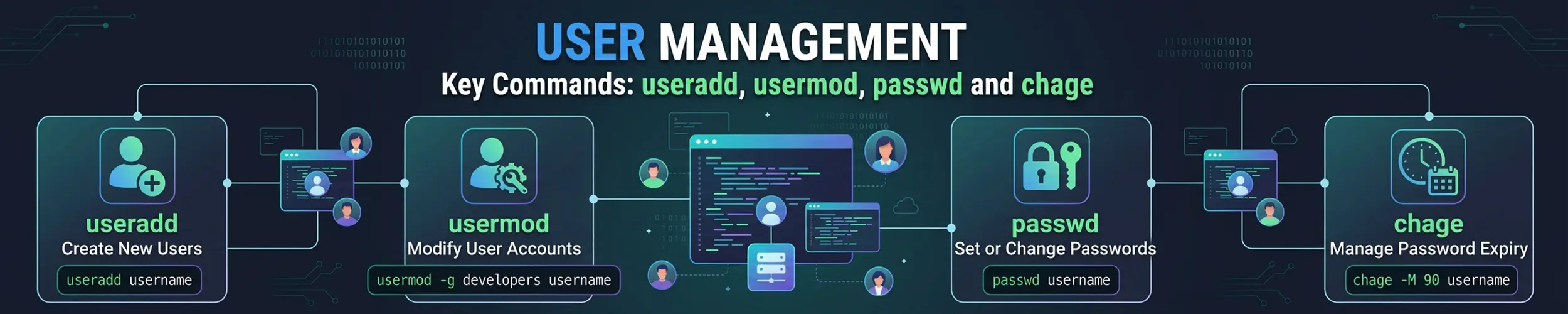
Adding a user is one command. Everything that goes wrong afterwards comes from the details around it — a home directory that was never created, a shell set to /sbin/nologin, or the single missing flag that removes every group a person was in. This page covers the commands, the files behind them, and the traps.
For what a user actually is — UIDs, why most accounts on your system are not people, and what root really means — read Users, Groups and Root first. This page is the reference for doing it.
adduser or useradd?
These are not two spellings of the same thing, and the difference depends on your distribution.
| Command | Debian / Ubuntu | RHEL / Fedora / Arch |
|---|---|---|
useradd | Low-level. Creates nothing you did not ask for. | Same tool, same behaviour. |
adduser | A friendly interactive wrapper — creates the home directory, prompts for a password, adds a matching group. | Usually just a symlink to useradd. No prompts, no home directory. |
So adduser bob does something helpful on Ubuntu and something surprisingly minimal on Rocky Linux. In scripts, always use useradd with explicit flags — it behaves identically everywhere.
Creating an account
# The portable form — works on any distribution
sudo useradd -m -s /bin/bash -c "Alice Chen" alice
sudo passwd alice

# Debian and Ubuntu, interactively
sudo adduser alice| Flag | What it does |
|---|---|
-m | Create the home directory. Without it there is no home, and the user’s shell starts in a directory that does not exist. |
-s /bin/bash | Login shell. The default is often /bin/sh, which is not what you want for a person. |
-c "Alice Chen" | The comment (GECOS) field — a real name, or a note about what a service account is for. |
-G sudo,docker | Supplementary groups at creation time. Safe here; dangerous on usermod, see below. |
-g developers | Primary group. Defaults to a new group named after the user. |
-u 1500 | Specific UID. Useful when the same account must match across machines or an NFS share. |
-d /srv/app | Home directory somewhere other than /home/<name>. |
--system | A service account: low UID, no ageing, and on Debian no home directory unless you ask. |
An account for a daemon rather than a person should not be able to log in at all:
sudo useradd --system --shell /usr/sbin/nologin --no-create-home myappGroups, and the flag everyone forgets
Always use -aG, never bare -G, with usermod. usermod -G docker alice does not add Alice to docker — it makes docker her only supplementary group and silently removes every other one, including sudo. People have locked themselves out of their own servers this way.
sudo groupadd developers          # create a group
sudo usermod -aG developers alice # add Alice to it, keeping her others
sudo gpasswd -d alice developers  # remove Alice from it
sudo usermod -g developers alice  # change her *primary* group
groupdel developers # delete the groupGroup membership is read at login. After adding yourself to a group, your current shell still has the old list — log out and back in, or start a new session with newgrp developers. Checking with id before doing that will show the old membership and make you think the change failed.
The group that grants administrative rights differs by family: sudo on Debian and Ubuntu, wheel on Red Hat derivatives and Arch. See sudo for granting narrower privileges than “everything”.
Finding out what an account actually has
id alice              # UID, primary group, every supplementary group
groups alice          # just the group names
getent passwd alice   # the account record, wherever it comes from
getent group sudo     # who is in a group
lslogins              # every account, with last login and lock status
last alice            # login history
w # who is logged in right now, and doing whatgetent is the one worth internalising. Reading /etc/passwd directly only shows local accounts; getent queries every source configured in /etc/nsswitch.conf, so on a machine joined to LDAP or Active Directory it sees users that the file does not contain. getent passwd with no argument lists everything.
Passwords and ageing
sudo passwd alice        # set or reset a password
passwd                   # change your own
sudo passwd -l alice     # lock (disables password auth)
sudo passwd -u alice     # unlock
sudo passwd -e alice     # expire now: must change at next login
sudo passwd -S alice # status: P = usable, L = locked, NP = no passwordchage controls the ageing policy — how long a password lasts and when the account itself stops working.
chage -l alice                        # show current settings
sudo chage -M 90 -W 14 alice          # expires after 90 days, warn for the last 14
sudo chage -d 0 alice                 # force a change at next login
sudo chage -E 2026-12-31 alice        # account itself expires on that date
sudo chage -E -1 alice # never expires-E is the useful one for contractors and temporary access: set the end date when you create the account and it closes itself. Note that expiry and locking both stop password logins but neither removes an SSH key — an account expired with -E is refused by the login process, but if you only ran passwd -l, a key in ~/.ssh/authorized_keys still works. See SSH Access for a Small Team for offboarding that actually removes access.
Removing an account
sudo userdel alice          # remove the account, keep the home directory
sudo userdel -r alice       # remove the account and its home and mail spool
sudo deluser --remove-home alice # Debian equivalentTwo things worth knowing before you run it. First, -r only removes the home directory — files the user owns elsewhere stay behind with a numeric UID where the name used to be, and that UID will eventually be reused by a new account which then inherits them. Find them first:
sudo find / -xdev -uid "$(id -u alice)" -lsSecond, on a server, deleting is usually the wrong move. Lock the account and disable the shell instead — logins stop immediately, ownership stays intact, and the audit trail still makes sense.
sudo usermod -L -e 1 -s /usr/sbin/nologin alice
sudo mv /home/alice/.ssh/authorized_keys /home/alice/.ssh/authorized_keys.revoked
sudo pkill -u alice # end any session still runningWhere all of this is stored
| File | Contents |
|---|---|
/etc/passwd | Name, UID, GID, comment, home, shell. World-readable, and despite the name contains no passwords. |
/etc/shadow | Password hashes and ageing fields. Readable only by root. |
/etc/group | Groups and their supplementary members. |
/etc/gshadow | Group passwords and administrators. Rarely used. |
/etc/skel/ | Template copied into every new home directory. |
/etc/login.defs | UID ranges, default ageing, default umask. |
/etc/default/useradd | Defaults useradd applies when you do not specify. |
Edit these with vipw, vipw -s and vigr rather than opening them directly. Those wrappers take a lock, so a concurrent useradd cannot overwrite your changes, and they check the syntax before saving — a malformed line in /etc/passwd can stop logins entirely.
Anything you put in /etc/skel — a starting .bashrc, a shared .vimrc, an empty .ssh directory with mode 700 — is copied into the home directory of every user created afterwards. It has no effect on accounts that already exist.
A checklist for a new person on a server
sudo useradd -m -s /bin/bash -c "Alice Chen" alice
sudo usermod -aG sudo alice              # or wheel on RHEL family
sudo install -d -m 700 -o alice -g alice /home/alice/.ssh
sudo install -m 600 -o alice -g alice /tmp/alice.pub /home/alice/.ssh/authorized_keys
id alice                                 # confirm the groups
sudo passwd -S alice # confirm the login stateNo password is set in that sequence, which is deliberate: the account authenticates by key only. If you want a password as well, add sudo passwd alice and sudo chage -d 0 alice so they must change it on first login.
Related
- Users, Groups and Root — the concepts behind these commands
- sudo — granting privileges narrowly rather than all at once
- File Permissions — chmod, chown and umask
- SSH Access for a Small Team — the whole workflow, including offboarding