

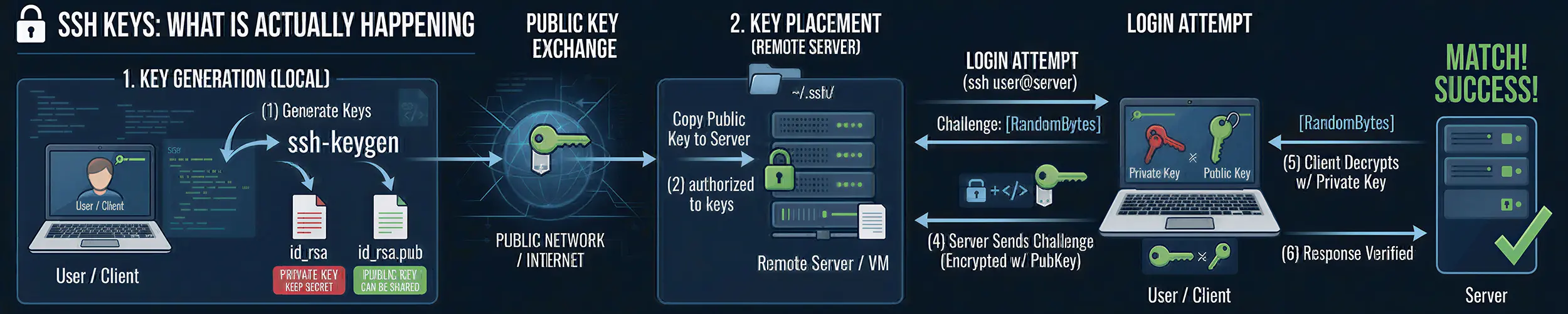
Everyone learns the recipe: run ssh-keygen, run ssh-copy-id, log in without a password. It works, and it leaves several things unexplained — what the two files actually are, why the server can verify you without ever knowing your secret, and what that alarming REMOTE HOST IDENTIFICATION HAS CHANGED warning is really telling you.
The underlying idea is worth twenty minutes, because it is the same idea behind HTTPS, signed packages and code signing, and because a few of the mistakes are genuinely serious.
Two keys, one of which you give away
A key pair is two mathematically related files. What one can lock, only the other can unlock — and crucially, you cannot work out the private key from the public one.
| Private key | Public key | |
|---|---|---|
| File | ~/.ssh/id_ed25519 | ~/.ssh/id_ed25519.pub |
| Lives | Only on your machine | On every server you use |
| Safe to share | Never | Yes, completely |
| Proves | That you are you | Nothing on its own |
| If leaked | Replace it everywhere, now | No consequence |
The public key really is public. You can post it, email it, commit it — it is a lock, and locks are not secret. GitHub publishes every user’s public keys deliberately.
What happens when you connect
The step people miss is that your private key never leaves your machine, and neither does anything derived from it that could be replayed.
- You connect. The server proves its identity first, using its own host key.
- You and the server agree an encryption key for this session. Everything after this point is encrypted.
- You say which public key you intend to use.
- The server checks whether that key is in
~/.ssh/authorized_keysfor the account you asked for. If not, it refuses. - The server sends a random challenge.
- Your machine signs the challenge with the private key and sends the signature back.
- The server verifies the signature against the public key it already has, and lets you in.
Because the challenge is different every time, a signature captured from one login is useless for the next. And because verification only needs the public key, a compromised server cannot steal your identity — it never had anything that would let it log in as you elsewhere.
That is the fundamental advantage over passwords, and it is not a small one. A password is sent to the server, which means every server you log into could record it. A key is never sent at all.
Making a key
# Ed25519 - the right default
ssh-keygen -t ed25519 -C "kevin@laptop"

# Only if something old refuses Ed25519
ssh-keygen -t rsa -b 4096 -C "kevin@laptop"

# Copy the public half to a server
ssh-copy-id user@server

# See what you have
ls -l ~/.ssh/
ssh-keygen -lf ~/.ssh/id_ed25519.pub| Type | Use it? |
|---|---|
ed25519 | Yes — fast, short, secure |
rsa 4096-bit | Only for old systems that reject Ed25519 |
rsa under 2048-bit | No — replace it |
dsa, ecdsa | No — DSA is removed from modern OpenSSH |
The comment on the end (-C) is not decoration. It appears in authorized_keys on every server, and in two years it is the only way to tell which of five keys belongs to the laptop you no longer own. Name it after the machine, not yourself.
The passphrase question
A passphrase encrypts the private key file on disk. Without one, anyone who copies that file — a stolen laptop, a bad backup, a compromised account — can log in as you everywhere the key is trusted.
The usual objection is that typing it constantly is unbearable. That objection is solved: the ssh-agent holds the decrypted key in memory, so you type the passphrase once per session and not again.
# Add your key to the agent
ssh-add ~/.ssh/id_ed25519

# What is loaded?
ssh-add -l

# Forget everything (before leaving a shared machine)
ssh-add -D

# Add a passphrase to a key that has none
ssh-keygen -p -f ~/.ssh/id_ed25519Use a passphrase on any key you carry around. The exception worth allowing is a key that exists only on a server for automation, cannot be typed into interactively, and is restricted at the other end — see the command restriction below.
Host keys, and the warning you must not ignore
Servers have key pairs too. The first time you connect you are asked to trust a fingerprint, and the answer is stored in ~/.ssh/known_hosts. Every later connection checks it.
This is the half of SSH that protects you from connecting to the wrong machine. Without it, someone positioned between you and the server could accept your connection, take your password, and pass everything through to the real server while reading it.
@@@@@@@@@@@@@@@@@@@@@@@@@@@@@@@@@@@@@@@@@@@@@@@@@@@@
@ WARNING: REMOTE HOST IDENTIFICATION HAS CHANGED! @
@@@@@@@@@@@@@@@@@@@@@@@@@@@@@@@@@@@@@@@@@@@@@@@@@@A@This means the machine answering is not the one you talked to last time. Nine times in ten the explanation is innocent — the server was rebuilt, or the address was reassigned. The tenth time it is exactly what it says.
The correct response is to verify out of band, not to delete the line and move on. Check the fingerprint through your provider’s console, or ask whoever rebuilt it:
# On the server, via console access
sudo ssh-keygen -lf /etc/ssh/ssh_host_ed25519_key.pub

# Once you have confirmed it, remove the stale entry
ssh-keygen -R server.example.comReflexively running ssh-keygen -R whenever the warning appears trains away the one protection this mechanism offers. It takes two minutes to check properly.
Agent forwarding is riskier than it looks
ssh -A forwards your agent to the server so you can hop onward using your local key. It is convenient and it hands the remote machine something significant: anyone with root on that server can use your agent, for as long as you are connected, to authenticate as you anywhere.
They cannot copy the key. They do not need to — they can ask your agent to sign challenges while your session is open.
The better answer is ProxyJump, which tunnels through the intermediate host without exposing anything to it:
# Reach an internal host through a bastion, safely
ssh -J bastion.example.com internal-db

# Or permanently, in ~/.ssh/config
Host internal-db
    HostName 10.0.1.50
    User deploy
ProxyJump bastion.example.comIf you genuinely need forwarding, confirm it per host rather than globally, and add ssh-add -c so the agent asks before each signature.
Restricting what a key can do
A line in authorized_keys can carry options that limit the key. This is how you give a backup script or a monitoring system access without handing it a shell.
# This key may run exactly one command, from one address, and nothing else
command="/usr/local/bin/backup-receive",from="203.0.113.5",\
no-agent-forwarding,no-port-forwarding,no-pty ssh-ed25519 AAAAC3... backup@nasWhatever the client asks to run, the server runs the named command instead. An automation key with command= and from= set is a far smaller liability than a general-purpose one, and it costs one line. Automated backups is the obvious place to use it.
Things that catch people out
| Symptom | Cause |
|---|---|
| Still asked for a password | Permissions — see below |
UNPROTECTED PRIVATE KEY FILE | chmod 600 ~/.ssh/id_ed25519 |
| Works as you, fails as root | Different home directory, different keys |
| Key ignored after copying to a new machine | Permissions lost in transfer |
| Agent empty in every new terminal | No agent running — check ssh-add -l |
| Works locally, fails from cron | Cron has no agent; use a passphrase-less restricted key |
| Too many keys offered, then refused | Every key the agent holds is offered in turn and each one counts as one of the server’s MaxAuthTries (6 by default). IdentitiesOnly yes helps only together with an IdentityFile naming the one key for that host; on its own it stops the agent’s keys being offered at all, so a key that lives only in the agent stops working |
Permissions cause most key failures, and SSH is deliberately silent about why — it refuses keys that others could read and does not explain itself in the client output.
# On the client
chmod 700 ~/.ssh
chmod 600 ~/.ssh/id_ed25519
chmod 644 ~/.ssh/id_ed25519.pub

# On the server
chmod 700 ~/.ssh
chmod 600 ~/.ssh/authorized_keys

# The home directory itself must not be group-writable
chmod 755 ~

# When it still will not work, ask why
ssh -vvv user@serverThat last one is the tool for this job. -vvv shows which keys were offered and what the server said, and the answer is almost always in there. The server’s own log is the other half — journalctl -u ssh, covered in reading Linux logs. File permissions explains the numbers.
Sensible practice
- One key per machine, not one key copied everywhere. Losing a laptop then means revoking one key rather than auditing all of them.
- A passphrase on anything portable, with the agent doing the remembering.
- Turn off password authentication once keys work — securing a new server covers it, and it ends the automated login attempts entirely.
- Use
~/.ssh/config. Host aliases with the right user, port and key are less error-prone than remembering flags. - Restrict automation keys with
command=andfrom=. - Remove keys when people leave. Nothing expires on its own —
authorized_keysis the list that quietly grows for years.
Quick reference
| You want | Command |
|---|---|
| Make a key | ssh-keygen -t ed25519 -C "me@laptop" |
| Install it on a server | ssh-copy-id user@server |
| Add a passphrase later | ssh-keygen -p -f ~/.ssh/id_ed25519 |
| Load it into the agent | ssh-add ~/.ssh/id_ed25519 |
| What is loaded? | ssh-add -l |
| Fingerprint of a key | ssh-keygen -lf key.pub |
| Forget a changed host | ssh-keygen -R hostname — after verifying |
| Hop through a bastion | ssh -J bastion target |
| Debug a refusal | ssh -vvv user@server |
Related reading
- ssh — the command, config file and tunnels in practice
- The Life of an SSH Connection — the long one: the seven stages of a connection, where the key exchange this page describes sits among them, and why a key that works from your laptop can fail from a machine holding the same key
- Securing a new server — turning off password authentication
- File permissions — the numbers behind most key failures
- Users, groups and root — whose
authorized_keysis being read - Tailscale — another way to avoid exposing SSH at all
- Automated backups — where restricted keys belong