

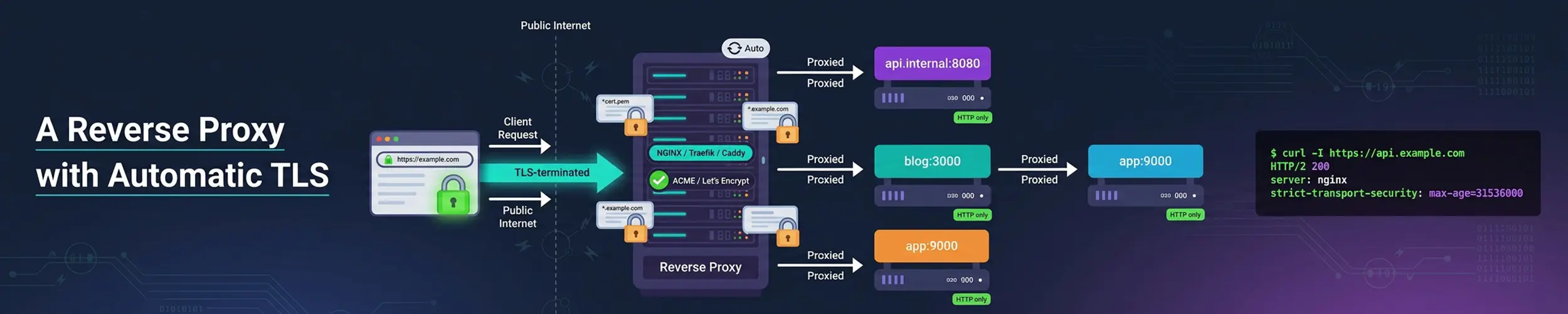
Self-hosting a second application creates a problem the first one did not have. Both want port 443. Both need a certificate. Neither should be reached by typing a port number after an address, and nothing on a home network can have a public certificate without help.
A reverse proxy solves all of it. One program owns ports 80 and 443, holds the certificates, and routes each incoming request to the right application by hostname.
                      ┌─ nextcloud.example.com → 127.0.0.1:8080
internet ─── proxy ───┼─ grafana.example.com   → 127.0.0.1:3000
(443, TLS) └─ git.example.com → 127.0.0.1:3001This sets that up. It assumes a server you can reach, DNS you can edit, and that you have worked through securing a new server.
What it does not do: authentication. A reverse proxy routes and encrypts; it does not decide who may use an application. Anything you expose is as protected as its own login page.
Caddy or Nginx?
| Caddy | Nginx | |
|---|---|---|
| Certificates | Automatic, nothing to configure | certbot, set up separately |
| Config for one site | 3 lines | ~30 lines |
| HTTP to HTTPS redirect | Automatic | Write it yourself |
| Ubiquity | Growing | Everywhere |
| Existing documentation | Less | Vast |
| Performance at scale | Good | Excellent |
Use Caddy for self-hosting. Automatic certificates are not a small convenience — certificate renewal is the thing that silently breaks and takes a site down eighteen months later, and Caddy removes that failure mode entirely.
Use Nginx if you already run it, if you need a specific module, or if the machine is someone else’s to maintain and they know Nginx. Setting up Nginx covers it as a web server; the proxy configuration is below.
1. DNS first
Every hostname must resolve to your server before the proxy starts, because certificate issuance works by proving you control the name.
# One A record per application, or a wildcard
# nextcloud.example.com   A   203.0.113.10
# grafana.example.com     A   203.0.113.10

# Verify - do not skip this
dig +short nextcloud.example.com
dig +short grafana.example.comVerify: each name returns your server’s public address. If it does not, wait for the TTL rather than debugging Caddy — networking from first principles covers why the old answer lingers.
2. Open only 80 and 443
sudo ufw allow 80/tcp
sudo ufw allow 443/tcp
sudo ufw statusPort 80 is needed even though everything ends up on HTTPS — certificate validation uses it, and it serves the redirect.
The application ports must not be open. 8080 and 3000 should be reachable only from the server itself. If your applications are containers, publish them to localhost explicitly — -p 127.0.0.1:8080:80 — because a plain -p 8080:80 bypasses ufw entirely and exposes the app unencrypted, straight past the proxy you just built. Linux firewalls covers that trap in full, and this is the setup where it does the most damage.
Verify: sudo ss -tulpn shows your applications bound to 127.0.0.1, not 0.0.0.0.
3. Install Caddy
# Debian and Ubuntu
sudo apt install -y debian-keyring debian-archive-keyring apt-transport-https curl
curl -1sLf 'https://dl.cloudsmith.io/public/caddy/stable/gpg.key' \
  | sudo gpg --dearmor -o /usr/share/keyrings/caddy-stable-archive-keyring.gpg
curl -1sLf 'https://dl.cloudsmith.io/public/caddy/stable/debian.deb.txt' \
  | sudo tee /etc/apt/sources.list.d/caddy-stable.list
sudo apt update && sudo apt install caddy

# Fedora, RHEL, Rocky, Alma
sudo dnf install caddy

systemctl status caddyVerify: curl http://localhost returns Caddy’s default page.
4. The Caddyfile
sudo nano /etc/caddy/Caddyfile# Your email, for certificate expiry warnings
{
email you@example.com
}
nextcloud.example.com {
reverse_proxy 127.0.0.1:8080
}
grafana.example.com {
reverse_proxy 127.0.0.1:3000
}
# A static site, for comparison
example.com {
root * /var/www/example.com
file_server
encode gzip
}# Check the syntax, then apply
sudo caddy validate --config /etc/caddy/Caddyfile
sudo systemctl reload caddy
# Watch it obtain certificates
sudo journalctl -u caddy -fThat is the entire configuration. Naming a site in the Caddyfile is what triggers certificate issuance — there is no certbot step, no renewal timer to check, and no cron job to forget. HTTP redirects to HTTPS automatically.
Verify: visit each hostname. You should get the application over HTTPS with a valid certificate, and http:// should redirect.
5. The bits real applications need
Two things break often enough to be worth adding up front.
app.example.com {
    reverse_proxy 127.0.0.1:8080 {
        # Some applications need to know their real hostname
        header_up Host {host}
        header_up X-Real-IP {remote_host}
    }

    # Large uploads
    request_body {
        max_size 2GB
    }

    encode gzip
    log {
        output file /var/log/caddy/app.log
    }
}The headers matter more than they look. Without them the application sees every request as coming from 127.0.0.1 — so rate limiting, audit logs and geo-blocking all see one client, and anything that builds absolute URLs may generate links to localhost. Caddy sets sensible defaults, but applications that are picky about their hostname need these stated.
WebSockets need no configuration in Caddy — they are proxied transparently, which is one of the larger practical differences from Nginx.
The Nginx equivalent
Same result, more configuration, and certificates handled separately:
# /etc/nginx/sites-available/app
server {
    listen 80;
    server_name app.example.com;

    location / {
        proxy_pass http://127.0.0.1:8080;
        proxy_set_header Host $host;
        proxy_set_header X-Real-IP $remote_addr;
        proxy_set_header X-Forwarded-For $proxy_add_x_forwarded_for;
        proxy_set_header X-Forwarded-Proto $scheme;

        # WebSockets - required, and easy to forget
        proxy_http_version 1.1;
        proxy_set_header Upgrade $http_upgrade;
        proxy_set_header Connection "upgrade";
    }

    client_max_body_size 2G;
}sudo ln -s /etc/nginx/sites-available/app /etc/nginx/sites-enabled/
sudo nginx -t
sudo systemctl reload nginx
# certbot edits the file to add TLS and sets up renewal
sudo certbot --nginx -d app.example.com
sudo certbot renew --dry-runRun certbot renew --dry-run and believe the result. Renewal failing quietly is the classic way a self-hosted site dies, and the dry run is the only thing that tells you it will work before the day it matters.
The three WebSocket lines are the most commonly omitted part of an Nginx proxy configuration, and their absence produces an application that mostly works with one feature mysteriously broken.
Things that catch people out
| Symptom | Cause |
|---|---|
| Certificate issuance fails | DNS not resolving yet, or port 80 closed |
| 502 Bad Gateway | The application is not running, or is on another port |
| App reachable on :8080 from outside | Docker published it past ufw — bind to 127.0.0.1 |
| Links point at localhost | Application needs Host and X-Forwarded-Proto |
| Every visitor logged as 127.0.0.1 | Missing X-Real-IP |
| Uploads fail at a certain size | Body size limit, on the proxy and the app |
| Live updates or chat do not work | WebSockets not configured (Nginx) |
| Redirect loop | App also forcing HTTPS; tell it it is behind a proxy |
# Is the application actually up and listening where you think?
sudo ss -tulpn | grep 8080
curl -I http://127.0.0.1:8080

# What is the proxy saying?
sudo journalctl -u caddy -e
sudo tail -f /var/log/nginx/error.logFor a 502, always check the application directly first. Half the time the proxy is fine and the application has crashed — reading Linux logs covers finding out why.
Not exposing everything
A proxy makes publishing an application trivial, which makes it easy to publish things that should not be public — an admin panel, a metrics endpoint, a service whose login page you have not thought about.
Two useful restrictions:
# Caddy: allow only your own network
internal.example.com {
    @denied not remote_ip 192.168.1.0/24 100.64.0.0/10
    respond @denied "Not available" 403

    reverse_proxy 127.0.0.1:9090
}

# Or a password in front of anything without its own auth
admin.example.com {
    basic_auth {
        alice $2a$14$...        # from: caddy hash-password
    }
    reverse_proxy 127.0.0.1:9000
}The cleaner answer for anything genuinely internal is not to publish it at all. Reach it over Tailscale and leave it bound to localhost, and there is nothing on the public internet to find.
Quick reference
| You want | Command |
|---|---|
| Add a site (Caddy) | Three lines in the Caddyfile, then reload |
| Check the config | sudo caddy validate --config /etc/caddy/Caddyfile |
| Apply changes | sudo systemctl reload caddy |
| Watch certificate issuance | sudo journalctl -u caddy -f |
| Check Nginx config | sudo nginx -t |
| Test certificate renewal | sudo certbot renew --dry-run |
| Is the app listening? | sudo ss -tulpn | grep PORT |
| Is the app healthy? | curl -I http://127.0.0.1:PORT |
| Hash a password (Caddy) | caddy hash-password |
Related reading
- Set up a web server with Nginx — Nginx as a web server, and certbot
- Linux firewalls — and why Docker’s published ports skip them
- Getting started with Docker — where most proxied applications live
- Networking from first principles — ports, DNS and bind addresses
- The Life of a TCP Connection — why a proxy that talks to one upstream is the machine that runs out of ports, what
TIME-WAITcosts it, and the upstream close that turns into a RST - Tailscale — for things that should not be public at all
- Reading Linux logs — diagnosing a 502