

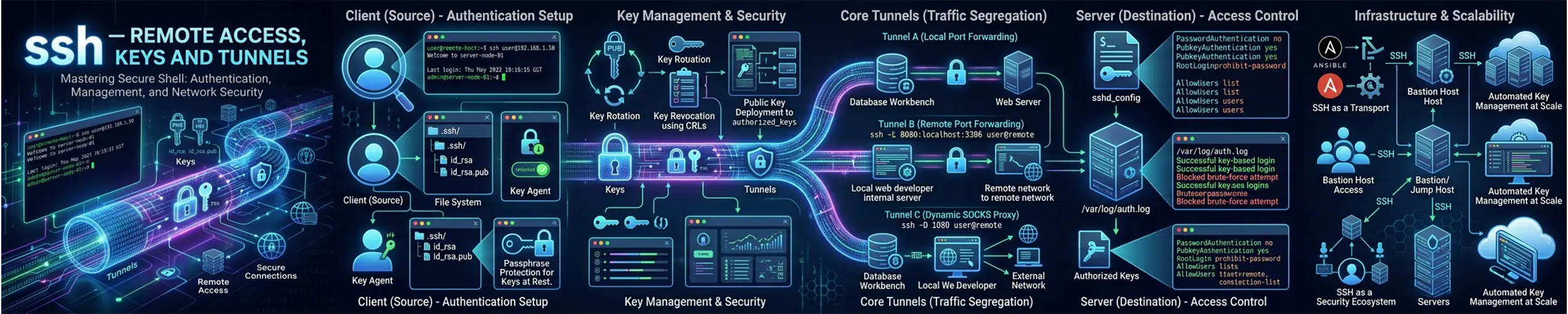
ssh gives you an encrypted shell on another machine. It is the front door to every Linux server you will ever administer, and it does considerably more than open terminals — it moves files, forwards ports, and tunnels other protocols through a single authenticated connection.
Connecting
ssh user@server.example.com
ssh user@192.168.1.50
ssh -p 2222 user@server            # non-standard port
ssh server "uptime" # run one command and exitThat last form is worth noticing early. SSH does not have to give you an interactive session — it can run a single command and return its output, which is what makes it composable with pipes and scripts.
Key authentication
Passwords over SSH are guessable, and any server exposed to the internet will see thousands of login attempts a day. Keys solve this properly. Generate one:
ssh-keygen -t ed25519 -C "kevin@laptop"Ed25519 is the current default recommendation — short, fast, and secure. Use -t rsa -b 4096 only if you must talk to something too old to support it.
You get two files in ~/.ssh/: id_ed25519 (private — never leaves your machine) and id_ed25519.pub (public — safe to distribute). Set a passphrase. A stolen laptop with an unprotected key is a stolen server.
Copy the public key to the server:
ssh-copy-id user@serverThat appends it to ~/.ssh/authorized_keys on the remote machine and fixes the permissions. Doing it by hand works too, but ssh-copy-id gets the permissions right, and permissions are where this usually goes wrong — see file permissions:
chmod 700 ~/.ssh
chmod 600 ~/.ssh/authorized_keys
chmod 600 ~/.ssh/id_ed25519SSH silently ignores keys and directories that others can read. If key auth “just does not work” and you are being prompted for a password, check these first.
The agent
ssh-add ~/.ssh/id_ed25519       # unlock the key once per session
ssh-add -l                      # list loaded keys
ssh-add -D # forget them allssh-agent holds your decrypted key in memory so you type the passphrase once rather than on every connection. Most desktop environments start one automatically.
The config file — the biggest quality-of-life win
Almost nobody sets this up early, and almost everybody wishes they had. Create ~/.ssh/config:
Host web
    HostName 203.0.113.42
    User deploy
    Port 2222
    IdentityFile ~/.ssh/id_ed25519

Host db
    HostName db.internal.example.com
    User kevin
    ProxyJump web

Host *
    ServerAliveInterval 60
    ServerAliveCountMax 3
AddKeysToAgent yesNow ssh web does the whole thing. Some of the directives worth knowing:
| Directive | Effect |
|---|---|
HostName | The real address; the Host line is just your nickname |
User | Default username for this host |
Port | Non-standard port |
IdentityFile | Which key to offer |
ProxyJump | Reach this host through another one — bastion hosts made easy |
ServerAliveInterval | Keepalive, stops idle sessions dropping |
LocalForward | Set up a tunnel automatically on connect |
ProxyJump deserves special mention. If your database server is only reachable from inside the network, that config above lets you type ssh db and SSH transparently hops through web to get there. It replaces the older, uglier ProxyCommand incantations.
The config file also applies to scp, sftp, rsync and git, so a host defined once works everywhere.
Moving files
scp file.txt user@server:/tmp/              # local to remote
scp user@server:/var/log/app.log ./         # remote to local
scp -r mydir/ user@server:/opt/             # recursive

rsync -avz mydir/ user@server:/opt/mydir/   # better for anything repeated
rsync -avz --delete --dry-run src/ server:/dest/ # preview a syncPrefer rsync over scp for anything you will do more than once: it transfers only what changed, shows progress, preserves permissions properly, and resumes. Always --dry-run first when --delete is involved.
Note the trailing slashes in rsync — src/ means “the contents of src”, src means “the directory src itself”. Getting this wrong nests a directory inside itself.
Port forwarding
The feature people underuse most. Three kinds:
Local forwarding: bring a remote service to your machine
ssh -L 8080:localhost:5432 user@serverNow connecting to localhost:8080 on your laptop reaches port 5432 on the server. This is how you use a graphical database client against a database that is not exposed to the internet — and it means it never needs to be.
Read the arguments as: local port : host as seen from the server : that host’s port. The middle part is resolved on the remote side, so it can be any machine the server can reach, not just the server itself.
Remote forwarding: expose your machine to the server
ssh -R 9000:localhost:3000 user@serverSomeone on the server can now reach your local development app on port 3000 by connecting to its own port 9000. Useful for demos and webhooks. By default it only listens on the server’s loopback interface; opening it wider requires GatewayPorts in the server config.
Dynamic forwarding: a SOCKS proxy
ssh -D 1080 user@serverPoint a browser at SOCKS proxy localhost:1080 and its traffic exits from the server. A poor man’s VPN for reaching internal web interfaces.
Add -N to any of these to set up the tunnel without opening a shell, and -f to send it to the background.
Host keys and that warning
On first connection SSH shows you the server’s fingerprint and stores it in ~/.ssh/known_hosts. If it ever changes, you get a large alarming warning about a possible man-in-the-middle attack.
Usually the cause is innocent — the server was rebuilt, or an IP address was reused. But do not blindly delete the entry. Confirm through another channel that the machine really did change, then remove the stale key:
ssh-keygen -R server.example.comThe warning exists for exactly one reason, and treating it as noise defeats the point of the protocol.
Agent forwarding: use with care
ssh -A user@serverThis lets you use your local keys from the remote machine — handy for cloning a private git repository from a server. The catch is that anyone with root on that server can use your agent socket to authenticate as you, anywhere your key works, for as long as you are connected.
Only forward to hosts you fully trust. ProxyJump is safer for the common case of hopping through a bastion, because it does not expose the agent to the intermediate host at all.
Hardening the server side
Once key authentication is confirmed working, put these in a file of your own under /etc/ssh/sshd_config.d/ rather than in /etc/ssh/sshd_config itself. On Debian and Ubuntu the main file starts by including that directory, and sshd keeps the first value it reads for each keyword — so a PasswordAuthentication yes in a drop-in the cloud image shipped (Ubuntu’s is 50-cloud-init.conf) beats a no written further down the main file, silently:
PermitRootLogin no
PasswordAuthentication no
PubkeyAuthentication yes
AllowUsers deploy kevinThen sudo sshd -t to validate the files, sudo sshd -T | grep -i passwordauthentication to see the value sshd will actually use once every Include is resolved and the first match taken, and sudo systemctl reload ssh — see systemctl. On Ubuntu 24.04 systemctl reload sshd is the same unit under an alias, so either name works. Do not skip the -t: sshd’s reload re-execs the daemon, so a file it will not accept takes the service down rather than leaving the old configuration running. And -T reads the files on disk, not the running daemon: until the reload, new connections are still judged by whatever the listener read last time.
Keep your existing session open and test the new configuration from a second terminal. If you have made a mistake, that open session is the only thing standing between you and a support ticket with your hosting provider. This applies to every SSH configuration change without exception.
Changing the port to something other than 22 reduces log noise from automated scanners but is not real security. Disabling password authentication is.
Troubleshooting
ssh -v user@server            # verbose — shows which keys are offered
ssh -vvv user@server # very verbose-v answers most questions on its own. It shows which key files were tried, in what order, and how the server responded to each.
| Symptom | Usual cause |
|---|---|
Permission denied (publickey) | Key not in authorized_keys, or permissions too open |
Connection refused | Nothing listening — wrong port, or sshd is not running |
Connection timed out | Firewall or wrong address; the packets are not arriving |
kex_exchange_identification: Connection closed by remote host | Accepted, then closed before the banner — MaxStartups full, PerSourcePenalties (OpenSSH 9.8+) after a burst of failures from your address, or something that is not sshd on the port |
Host key verification failed | The server’s key changed — verify, then ssh-keygen -R |
| Prompted for a password unexpectedly | Key auth failed and it fell back; run with -v |
On the server, journalctl -u ssh -f shows exactly why an attempt was rejected — far more informative than the client’s message.
Quick reference
ssh user@host                     # connect
ssh -p 2222 user@host             # non-standard port
ssh host "command"                # run one command
ssh-keygen -t ed25519             # generate a key
ssh-copy-id user@host             # install your public key
ssh -L 8080:localhost:5432 host   # local tunnel
ssh -R 9000:localhost:3000 host   # remote tunnel
ssh -D 1080 host                  # SOCKS proxy
ssh -N -f host                    # tunnel only, backgrounded
ssh -v host                       # debug
ssh-keygen -R host                # forget a changed host key
scp file user@host:/path/         # copy a file
rsync -avz dir/ user@host:/path/ # sync a directoryRelated
- File permissions — the cause of most key authentication failures.
- systemctl — reloading sshd after configuration changes.
- The Life of a Reload — the long one on what a reload reports and what it cannot, including why sshd is one of the two daemons a reload can kill.
- The Life of an SSH Connection — the long one on the seven stages between typing
sshand a shell: which side of the wire decided each refusal, hang or unexpected success, and whyPermission denied (publickey)is the server’s one-line summary of a conversation-vshows in full. - tar — streams archives over an SSH connection.
rsync— file synchronisation, running over SSH by default.mosh— survives roaming and dropped connections better than SSH on unreliable networks.