

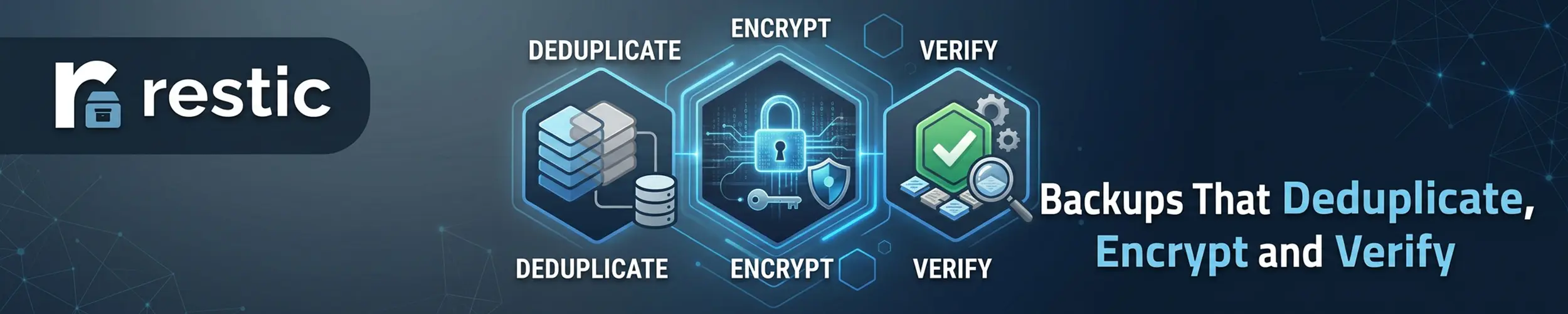
Copying files somewhere else is not a backup. A backup is something you can restore from a specific point in time, that survives the machine it came from being compromised, and that you have actually tested. restic is a single static binary that does that part properly: deduplicated, encrypted before it leaves your machine, and verifiable.
Is it worth your time? Yes, if you need history — several restore points, kept off the machine, without storing the data ten times over. No if what you actually want is one current copy of a directory on another disk: rsync does that in one line, and the result is browsable with ls. restic’s repository is only readable through restic, which is the price of deduplication and encryption. Do not pay it for a job rsync already does.
What it actually is
A repository is a directory of opaque encrypted files. Everything you back up is split into variable-sized chunks, and each unique chunk is stored once. A snapshot is a list of which chunks make up which files at one moment.
Two consequences matter. Backing up the same 40 GB of photos every night for a year costs roughly 40 GB, not 14 TB — and moving a directory, or backing up a second machine with the same operating system files, adds almost nothing. Every snapshot is also a full snapshot: there is no chain of incrementals where losing one breaks the rest.
Encryption happens on your machine before anything is uploaded, so the storage provider holds ciphertext and cannot see filenames, sizes or contents. The repository can live on a local disk, an SFTP target, a REST server, S3-compatible object storage, Azure, Google Cloud, or anything rclone can reach.
Lose the repository password and the data is gone. There is no recovery, no support address, no escrow. Store it somewhere that is not the machine being backed up — a password manager, or printed and in a drawer. This is the single most common way people lose a restic repository.
The twenty percent you will use
export RESTIC_REPOSITORY="sftp:backup@nas.local:/backups/laptop"
export RESTIC_PASSWORD_FILE="/root/.restic-password"

restic init                       # once, per repository
restic backup /home /etc          # a snapshot
restic snapshots                  # what you have
restic ls latest /etc/nginx       # look inside one without restoring
restic restore latest --target /tmp/r --include /etc/nginx
restic diff <id1> <id2>           # what changed between two snapshots
restic check # is the repository intactBacking up is worth a few more flags than the bare command:
restic backup /home /etc \
  --one-file-system \
  --exclude-caches \
  --exclude-file /etc/restic/excludes.txt \
--tag nightly--one-file-system stops it wandering into /proc, /sys and mounted network shares. --exclude-caches honours the standard CACHEDIR.TAG marker, which skips a surprising amount of build and browser cache. Tags let you apply different retention to different jobs later.
The nicest recovery feature is not restore at all:
mkdir /mnt/snapshots && restic mount /mnt/snapshotsEvery snapshot appears as a browsable directory tree. You can cd into last Tuesday, diff a config file against the running one, and copy back the single file you wanted — no full restore, no guessing which snapshot to pick.
Retention: the part people get wrong
forget removes snapshots from the list. It does not free any space — the chunks stay until prune works out which are unreferenced. Running one without the other for months is why a repository keeps growing after you set up retention.
restic forget --prune \
  --keep-daily 7 --keep-weekly 5 --keep-monthly 12 --keep-yearly 3 \
--keep-last 3 --group-by host,tagRun it with --dry-run the first time and read the list of what it would delete. --group-by matters as soon as more than one machine writes to the same repository: without it, one host’s snapshots can satisfy the policy and another’s get removed.
Running it unattended
# /etc/systemd/system/restic-backup.service
[Unit]
Description=Nightly restic backup
After=network-online.target
Wants=network-online.target
OnFailure=alert@%n.service

[Service]
Type=oneshot
Environment=RESTIC_REPOSITORY=s3:s3.example.com/backups-web1
EnvironmentFile=/etc/restic/env      # credentials and RESTIC_PASSWORD_FILE, mode 600
ExecStart=/usr/bin/restic backup /srv /etc --one-file-system --exclude-caches --tag nightly
ExecStart=/usr/bin/restic forget --prune --keep-daily 7 --keep-weekly 5 --keep-monthly 12
Nice=10
IOSchedulingClass=idlePair it with a timer using Persistent=true and a randomised delay, and with the OnFailure= alerting from Monitoring a Server. A backup that has been failing silently for six weeks is the normal way this ends, and the alert is what prevents it.
Gotchas
| Symptom | What is happening |
|---|---|
| “repository is already locked” | A previous run was killed. restic unlock after confirming nothing is running. |
Repository keeps growing despite forget | prune was never run. Add --prune. |
| A restored database starts, and is missing recent data | The files were copied while being written, so the copy is valid — at a moment nobody recorded. Dump first, back up the dump. The one that genuinely will not start is a copy with something excluded from it. See Restoring a Linux Server. |
| A restore fills the disk, and the snapshot was tiny | Sparse files are written out in full. restic restore --sparse — a restore-side flag, which is why it is in nobody’s backup script. |
| Backup is slow every night, not just the first | The local cache in ~/.cache/restic is missing or not persisted — common in containers. |
| Prune uses a lot of memory | Index size scales with the repository. On a small VPS, prune weekly rather than nightly. |
| Old repository, no compression | Compression needs repository format 2 — restic migrate upgrade_repo_v2. |
| Two jobs at once | One repository, one writer at a time. Stagger the timers. |
One setting worth knowing about if you host the repository yourself: rest-server has an append-only mode, in which a client can add snapshots but cannot delete any. That is the difference between ransomware encrypting your server and ransomware encrypting your server and your backups. Pruning then happens from a separate trusted account.
Where it does not belong
- As your only copy, on the same machine. A repository on the disk you are backing up protects against nothing except your own
rm. - Live databases. restic copies files as it finds them. Use
pg_dump,mysqldumpor a filesystem snapshot, and back up the result. - Bare-metal recovery. It backs up files, not partition tables or bootloaders. Restoring a dead machine means installing the OS first — or keeping a disk image as well. The same is true of everything else that was never a file: the LUKS header, LVM metadata, the filesystem UUID your
fstabnames, and the machine’s own identity — its SSH host keys and itsmachine-id. See Restoring a Linux Server. - Syncing between machines. That is Syncthing or rclone. A restic repository is not browsable storage.
- A copy someone else must read. Anything in the repository requires restic and the password. For handing files over, tar is the honest answer.
And the rule that outranks all of the above: a backup you have never restored is not a backup. Once a quarter, restore something to /tmp and open it. restic check --read-data-subset=5% on a schedule verifies the stored data itself rather than only the metadata.
Quick reference
restic init                          # create a repository
restic backup /path --tag nightly
restic snapshots                     # list them
restic mount /mnt/snapshots          # browse every snapshot as directories
restic restore latest --target /tmp/r
restic forget --prune --keep-daily 7 --keep-monthly 12
restic check --read-data-subset=5%   # verify actual data
restic unlock                        # after an interrupted run
restic stats # repository size and dedup ratioRelated
- Automated Backups — the full workflow, including what to back up and how often
- Restoring a Linux Server — the other end: what restic carries that
tarandrsyncdo not, the one thing it needs a restore-side flag for, and the four things no file-level backup contains - rsync — the simpler tool, and the right one for a plain second copy
- systemd Timers — scheduling it, with catch-up after downtime
- Monitoring a Server — finding out when it stops working