

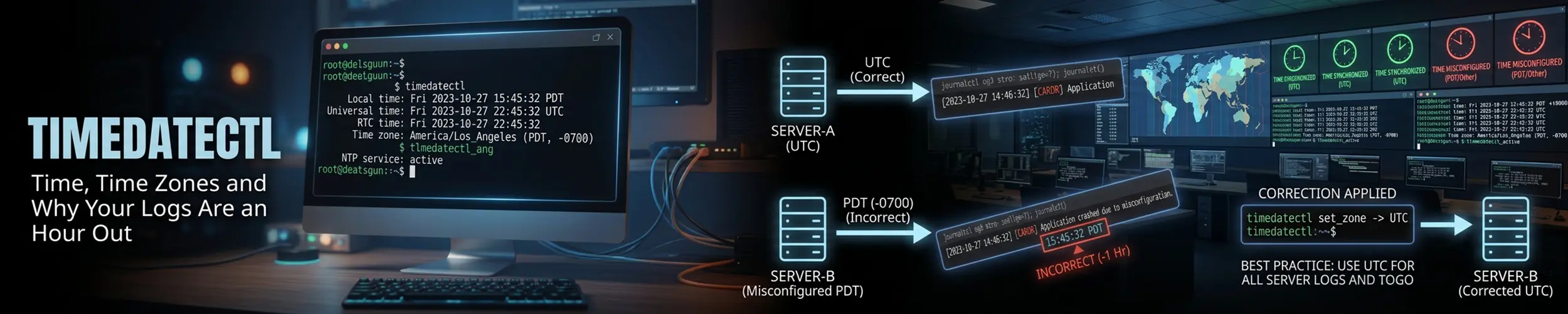
Time problems on a Linux box are rarely about the clock being wrong. They are about two machines disagreeing, or a log timestamp that does not match what a user reported, or a scheduled job that ran twice one night in October. All of those come back to the same three settings, and timedatectl shows them in one command.
timedatectl Local time: Mon 2026-08-31 11:04:22 BST
Universal time: Mon 2026-08-31 10:04:22 UTC
RTC time: Mon 2026-08-31 10:04:22
Time zone: Europe/London (BST, +0100)
System clock synchronized: yes
NTP service: active
RTC in local TZ: noThree lines matter. Time zone is what everything local renders in. NTP service is whether anything is keeping the clock right. System clock synchronized is the one to be careful with, because it is not a statement about trust, or about whether this machine has ever reached a time server: systemd calls adjtimex() and reports whether the kernel’s maxerror is still under sixteen seconds. That is a latch, not a report. When a time daemon dies the kernel grows maxerror by itself at 500 microseconds per second and nothing else touches it, so the line goes on printing yes for eight hours, fifty-three minutes and twenty seconds afterwards. Ask the daemon rather than the flag — chronyc tracking, or timedatectl show-timesync --all. How Time Works on a Linux Machine measures the decay.
Setting the time zone
timedatectl list-timezones | grep -i london
sudo timedatectl set-timezone Europe/London
sudo timedatectl set-timezone UTCAlways use a region name like Europe/London or America/New_York, never an abbreviation like BST or EST. The region name carries the whole history of that place’s daylight saving rules and gets updated when a government changes them; an abbreviation is a fixed offset that will be wrong for half the year.
The change takes effect immediately for anything started afterwards, but long-running services keep the old zone until they are restarted. Not because they read it at startup, though — they cache it at the first call to tzset(), which in practice means the first time the process formats a time. A process that has not yet printed a timestamp picks up the new zone, and two workers forked from the same unit in the same second can render different zones for the rest of their lives, depending only on which of them had already logged something. So if you change the zone on a live box, restart the services whose logs you care about — or accept that today’s log file has a discontinuity in it. How Time Works on a Linux Machine works through it.
Leave servers on UTC
A server on local time has an hour that happens twice a year and an hour that never happens at all. When the clocks go back, 01:30 occurs twice — so a job scheduled for 01:30 can run twice, and two log lines an hour apart can carry the same timestamp with nothing to distinguish them. When they go forward, 01:30 does not exist, so that job silently does not run. UTC has neither problem, and that is the whole of the reason to use it: no DST, so no hour repeats and none goes missing. It is not that the clock cannot move. The clock rendered as UTC is CLOCK_REALTIME, which anyone holding CAP_SYS_TIME can set in either direction and which steps backwards during a leap second; CLOCK_MONOTONIC is the clock that does not move, and it is a different object. Machines agreeing with each other is what NTP is for, not something UTC supplies — see How Time Works on a Linux Machine. Set servers to UTC and convert to local time only where a human reads the output.
Your laptop is the opposite case — set it to your actual zone, because you want calendar reminders and file timestamps in the time you live in.
Keeping the clock right
sudo timedatectl set-ntp true      # turn on automatic synchronisation
timedatectl show-timesync --all    # what it is talking to, and how far off it was
systemctl status systemd-timesyncdMost distributions ship systemd-timesyncd, a lightweight SNTP client that is entirely adequate for a normal server. Some use chronyd instead, which is a fuller NTP implementation and better on machines that suspend, have unreliable networks, or need to serve time to others. They cannot both run: if set-ntp true reports that the service is masked, chrony is probably installed, and chronyc tracking is the command to check instead.
To point timesyncd at specific servers, edit /etc/systemd/timesyncd.conf:
[Time]
NTP=time.cloudflare.com time.google.com
FallbackNTP=0.pool.ntp.org 1.pool.ntp.orgsudo systemctl restart systemd-timesyncd
timedatectl show-timesync --all | headNTP uses UDP port 123 outbound. A firewall that only permits TCP is the usual reason a machine never synchronises and nobody notices for months.
Setting the time by hand
sudo timedatectl set-ntp false
sudo timedatectl set-time "2026-08-31 11:04:00"
sudo timedatectl set-ntp trueYou must turn NTP off first — set-time refuses while automatic synchronisation is running, which is the correct behaviour and confuses everyone the first time.
Jumping the clock is disruptive: a large backwards step can upset databases, TLS handshakes and anything measuring elapsed time with wall-clock timestamps. If the machine is merely drifting, let NTP correct it gradually rather than stepping it yourself.
The two clocks
Most machines have a battery-backed hardware clock (the RTC) that keeps time while they are switched off, and every machine has a system clock the kernel maintains while it is running. Where both exist they are read at boot and written back at shutdown, and they can disagree. Plenty of machines have no RTC at all, though — microVMs, many cloud instances, ARM boards without an add-on module — and on those hwclock tries /dev/rtc0, then /dev/rtc, then /dev/misc/rtc, finds none, and reports Cannot access the Hardware Clock via any known method. There the wall clock’s starting value came from the hypervisor or from a file on disk instead. ls -l /sys/class/rtc/ tells you which kind of machine you are on: an empty directory means nobody kept the time while it was off, which How Time Works on a Linux Machine takes from the beginning.
sudo hwclock --show        # what the hardware clock says
sudo hwclock --systohc     # copy system time to hardware
sudo hwclock --hctosys # copy hardware time to systemThe RTC in local TZ line matters if you dual-boot. Linux keeps the hardware clock in UTC by convention; Windows keeps it in local time. Each then “corrects” what the other set, and the clock jumps by your offset every time you switch. The fix is to make Windows use UTC as well, rather than telling Linux to use local time:
# only if you cannot change the Windows side
sudo timedatectl set-local-rtc 1 --adjust-system-clocksystemd warns when you do this, and the warning is fair — an RTC in local time is ambiguous for one hour every autumn.
Reading a timestamp in another zone
You do not have to change anything system-wide to see time somewhere else. TZ in front of a command changes it for that command only:
TZ=America/New_York date
TZ=UTC date
TZ=Asia/Tokyo date -d "2026-09-01 09:00 Europe/London"The same works for logs. journalctl renders in local time by default:
journalctl --utc -u nginx              # force UTC
TZ=America/New_York journalctl -u nginx # render in a customer's zoneAnd date is a useful converter in its own right:
date -u +%Y-%m-%dT%H:%M:%SZ     # ISO 8601 in UTC, the format to log in
date -d @1756636800             # what is this Unix timestamp
date +%s                        # what is the Unix timestamp now
date -d "next friday 09:00" # arithmetic that is easy to get wrong by handScheduled jobs and time zones
A systemd timer runs in the system time zone unless told otherwise, and it can be told:
[Timer]
OnCalendar=Mon..Fri 09:00 Europe/London
Persistent=truesystemd-analyze calendar "Mon..Fri 09:00 Europe/London"systemd-analyze calendar prints the next few firing times, which is the only reliable way to check a schedule before trusting it. Persistent=true makes a missed run happen at the next boot — which is what you want for a nightly job on a machine that is not always on, and not what you want for something that would be harmful to run late.
Classic cron has no such option: it uses the system zone, full stop. On a UTC server that is unambiguous, which is another reason to keep servers on UTC.
Common problems
| Symptom | Cause | Fix |
|---|---|---|
| Logs an hour out from what users report | Server in a DST zone, or a service caching an old one | Move to UTC; restart the service |
set-time refuses | NTP is on | set-ntp false first |
System clock synchronized: no, forever | UDP 123 blocked outbound | Open it, or use an internal NTP server |
System clock synchronized: yes, and the time is still wrong | The line is a latch, not a report — it keeps saying yes for hours after the daemon dies | chronyc tracking, or How Time Works |
| Clock jumps every time you boot Windows | RTC written in two different conventions | Make Windows use UTC |
| Certificate errors on a fresh machine | Clock badly wrong, so the cert is “not yet valid” | Sync the time before debugging TLS |
set-ntp true says the unit is masked | chrony or ntpd is installed instead | chronyc tracking |
| A nightly job ran twice in October | Local-time schedule crossing a DST fallback | UTC, or an explicit zone in the timer |
| Container time renders differently from the host | The image has no zone data and defaults to UTC. This is a rendering difference, not a clock difference | Set TZ in the container, or accept UTC |
| Container time is different from the host | It cannot be. A container shares the host’s CLOCK_REALTIME byte for byte and cannot be given another one — only its uptime can be shifted | The host’s clock is wrong, and the container is innocent — How Time Works |
Quick reference
timedatectl                        # everything at a glance
timedatectl list-timezones         # valid names
sudo timedatectl set-timezone UTC  # what a server should be
sudo timedatectl set-ntp true      # keep it correct
timedatectl show-timesync --all    # who it syncs with, and the offset

TZ=America/New_York date           # one command, another zone
journalctl --utc -u nginx          # logs in UTC regardless
date -u +%Y-%m-%dT%H:%M:%SZ        # the format to write timestamps in
systemd-analyze calendar "Mon..Fri 09:00 Europe/London"Related reading
- How Time Works on a Linux Machine — the long one: which clock you are actually looking at, who may move it, what the
synchronizedline really latches, and who judges the timestamps this machine produces - systemd timers — where
OnCalendarandPersistentlive - cron — the older scheduler, and its time-zone blind spot
- journalctl — filtering logs by time, and rendering them in another zone
- Locales and encoding — the other environment variables that change how output is formatted
- systemd explained — what
timedatectlis actually talking to